
Single Select questions are a great way to get feedback in situations where only one response from a pre-determined set of selections is desired. Examples are:
- Demographics (education, gender, household size, etc.)
- Ratings/Scale questions
- Numerical values or ranges
Two Types of Single Select Questions
Single Select: This question type allows you to create an infinite number of answer choices to a specific question, with respondents choosing only one response.
Single Select Matrix: This question type is similar to the Single Select in that respondents may select only one answer choice. However, Single Select Matrix allows set-up for a single scale used for multiple attributes in a table.
Programming Steps
From the New Question dropdown menu, select Single Select.
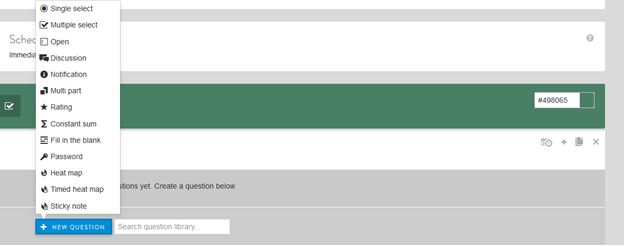
Next, enter and update the following:
- Question text and a label, if desired (labels are not shown to respondents but can be used for back-end reporting).
- Select clip icon to attach an image or video, if desired.
- Select checkbox if you want to make the question required (all have to answer it to go to the next survey screen).
Other options include:
- Select checkbox if you want to make it a Matrix question (used for multiple attributes that have the same answer option scale)
- You can select radio or dropdown for options to show answer choices.
- Ranking is grayed out. It becomes available if the Matrix button is selected. For more details and programming tips on Ranking functionality, read here.
- Switch type allows you to switch the question type from Single Select to Multiple Select.
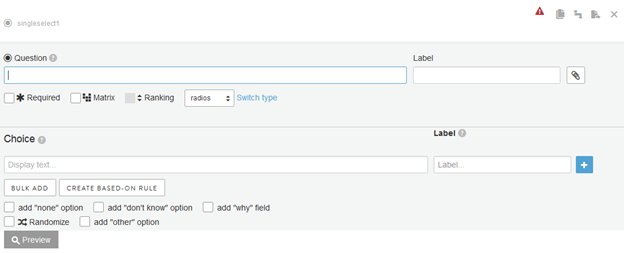
- Under "Choice," add the answer options. You may do this by typing in one at a time and choosing the + sign in the blue box to add others or simply press ENTER when done typing each choice. You may also choose BULK ADD to paste in a list of choices from another source. Again, labels can be added, if desired (labels are not shown to respondents but can be used for back-end reporting).
- Select clip icon to attach an image or video, if desired.
- Create Based-On Rule is a great advanced programming feature that allows you to show answer choices based on past member responses within this activity. For more details, read here.
- A "none" option, a "don't know" option and/or an "other" option can be added. These options will automatically be shown at the end of the list – even when the list is randomized.
- Adding "why" field will add an open-end text box underneath the options. Note, the "why" field is not required even if the overall question is set as a required question.
- Choices can be randomized, if applicable to research needs.
- Click FINISHED to save the question.
Example Set-up: Single Select
For example, the set-up for a required, randomized Single Select with answer options, including "none," "don’t know" and "other" listed in radio order is shown below:
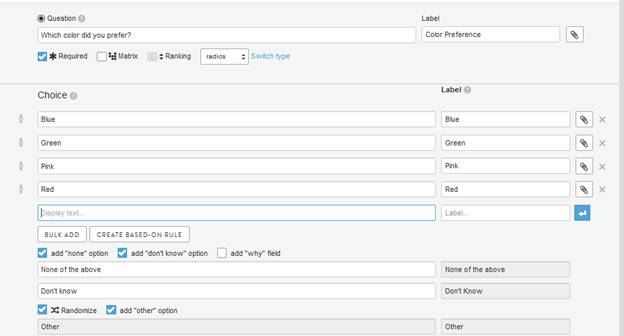
Once set-up is complete, the Preview below will show how the question will appear on the survey platform:
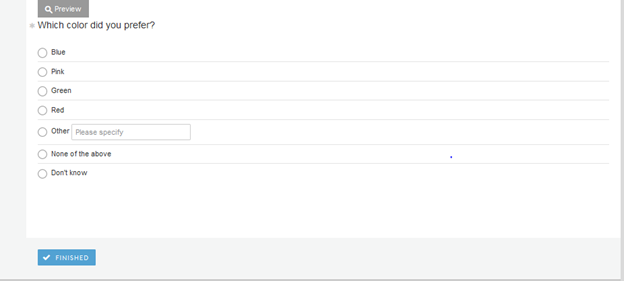
Example Set-up: Single Select Matrix
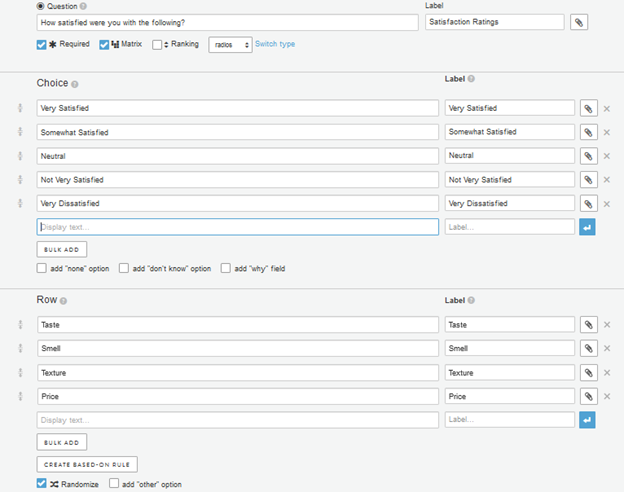
Set-up for a required, randomized Single Select Matrix with a Likert Scale and attributes listed in random order is shown below:
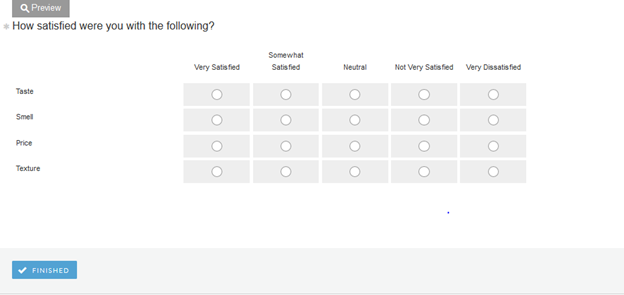
Once set-up is complete, the Preview below will show how the question will appear on the survey platform:
Continue reading:
For more details see:
Comments
0 comments
Article is closed for comments.