
During the activity programming phase, it is possible to see a preview of the entire survey. This screen is helpful during programming or when you are done programming all questions and are ready to start reviewing and testing your activity.
Accessing Overview
From the QUESTIONS tab, select Overview.
The following screenshot shows how your survey may look. The entire survey will appear on screen. Scroll down to see your entire survey.
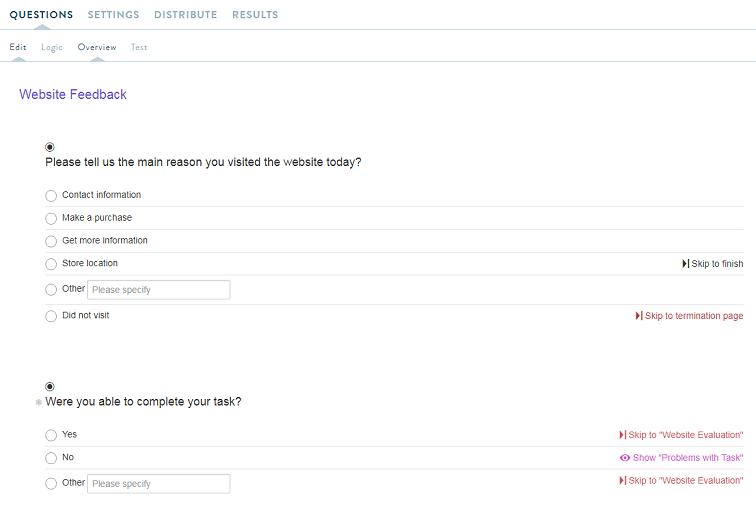
The Overview tab is a great way to review several different aspects of your survey:
- Verify all questions and answer choices are included and in the correct order.
- Review that overall question flow makes sense.
- Review content for typos and grammar.
- Ensure appropriate questions are required, which is shown by an asterisk next to each required questions.
- Double check you have sufficient page breaks, i.e. you do not have too many questions per page. Note: the gray areas and page headings to identify page breaks.
- QA that Simple Skip Logic is in place and correct (Note the skip and logic details with color coding).
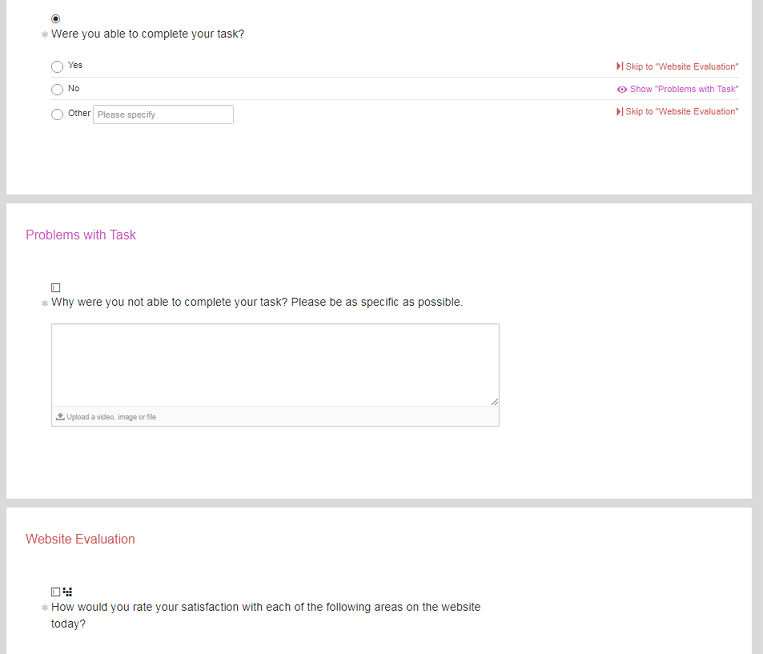
Once you are done with your initial review, you may go back to the Edit tab to make any adjustments. If you are satisfied with the overview, your next step is to do some formal testing.
To test your survey, go to the Test tab. For more details on Testing, read here.
Continue reading:
For more details see:
Comments
0 comments
Article is closed for comments.