
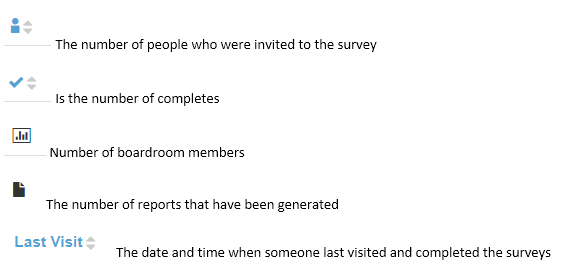
The Feedback Tab is where you can create new activities and access activities ever created for monitoring or review. When using the Feedback Tab you willl be able to quickly access the following information: Activities, Status (active, pending, and closed), First Published, Closed, Number of Respondents, Completes, Customer Boardroom Members, Reports, and Last Visit.
Key tasks you can perform from this view are:
- Create s new activity: click here for instructions and steps.
- Filter by activity Type
- Review activity status
- Archive/ hide activities
- Copy activities
Filter by Activity Type
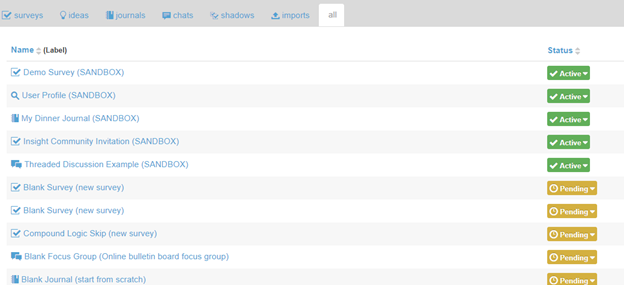
The Feedback Tab’s default setting is to show ALL Activity types. If you want to look at a specific type of activity, it is as simple as clicking on the activity type along the top. Notice that in the image below the "all" heading has white shading:
Activity Status
Active: means the activity is live within the community. Members can access and complete the activity either by their To Do List, a tile or through email.
Pending: means that an activity has been created and is still in the draft phase. This means you can program, edit, set incentives and invite language, as well as test.
When you create a new activity it automatically is pending. It is not considered "Live" or "Active" until you manually set it to active.
Closed: means the activity is no longer active. Community members will not see or be able to access this activity anymore. When the activity is closed you will be able to distribute incentives, pull data, and create your report.
Changing Activity Status
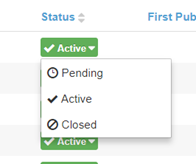
Changing an activity status is simple. You can switch the status back and forth between the three statuses.
Make sure that you have identified the activity that you want to change the status of. Then go to the "Status" column, click on the Active/Pending/Closed button, and simply change to the status you would like to change to.
Column Headings
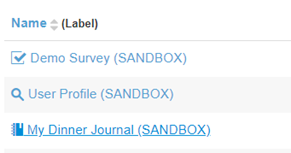
Name (Label): is the activity name. This will include both the name that is presented to your community members and your internal activity name.
For example: Demo Survey (SANDBOX)
Demo Survey = name of activity for Community members to see
(SANDBOX) = internal activity name
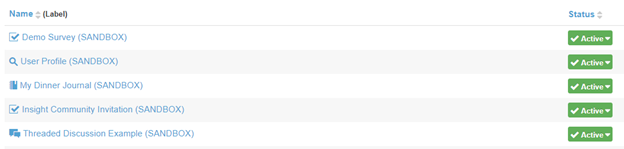
Status: is the status of the activity, and is typically ordered the following way by Active, Pending, Closed.
First Published and Closed: First Published is the date and time when the activity was first made active and launched to the community. Closed is when the activity was closed.
Archive Activities
On the far right hand side of the Feedback page, you will see an eye icon. Click on the icon next to the activity you would like to archive.
If you want to either hide or show your archived activities, look above the Last Visit column, and you will see either "Showing archived" or "Hiding archived." You can always re-access an archived activity.
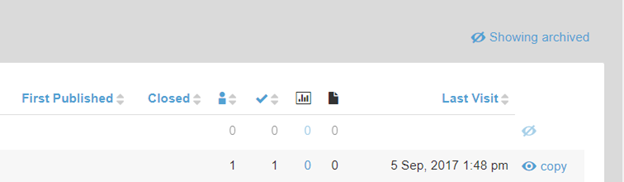
When you see "Showing archived" that means that along with your non-archived activities, you will also see your archived activities.
When you see “Hiding archived” you will not see any of your archived activities.
Copy Activities
Next to the eye icon is the "copy" feature. Click on this to copy the activity, which will populate as a Pending activity within the Feedback Tab.
Comments
0 comments
Article is closed for comments.