
During the programming phase, it is possible to test the entire survey. This helps to:
- Ensure accuracy
- Experience the survey as a respondent will experience the survey
The activity test functionality allows you to:
- Test your survey and review how the respondent would see it
- Use specific review and test links to share with your clients and internal stakeholders. Using this second test link does not require people to have admin or user access to the community. This is especially useful when you have varying stakeholders you don't want to give admin rights to the community.
- Delete test responses. All cases collected during testing (while the activity is pending) are test cases. Once you set the activity to active these test cases will automatically be deleted.
Testing Steps
- From the QUESTIONS tab, select Test.
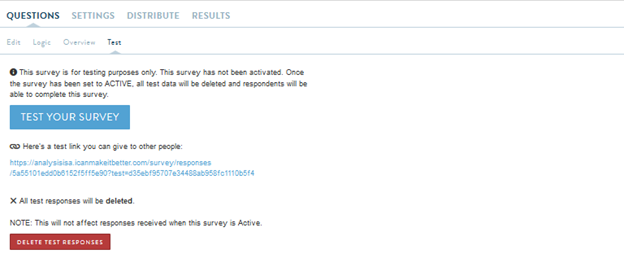
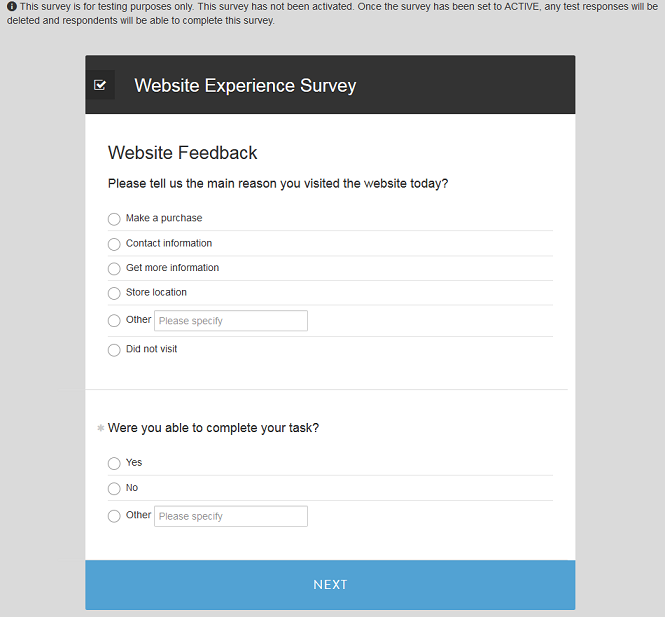
- Click on TEST YOUR SURVEY to begin testing. A new browser window will open with the first page of the survey on the screen. Note, the message on top of the screen that points out that you are in testing mode:
-
Advance through the activity by selecting and/or typing answers and click NEXT for each screen.
-
You will receive an error message like a respondent would get if you are not answering required questions or not meeting other validation requirements you programmed.
- Make sure you are going through the different paths and skip logic to ensure the activity is working as intended.
Comments
0 comments
Article is closed for comments.