
Discussion questions are a great way to get qualitative feedback from both individual respondents and groups of respondents. Like an Open or Essay question, Discussion questions allow respondents to give a full, meaningful response without the possible constraint of pre-determined (closed-ended) responses.
This question type ...
- Allows respondents to easily access the responses of other respondents
- Encourages respondents to engage with each other on the topic within the Discussion
- Allows platform moderator(s) to probe respondents and notify respondents of new moderator probes
Keep in mind, once you use a Discussion question in your activity, your activity automatically becomes a focus group.
Programming Steps
From the New Question dropdown menu, select Discussion.
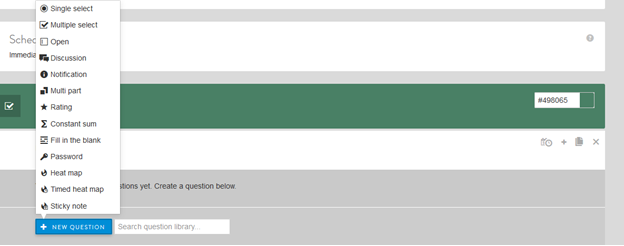
Next, enter and update the following:
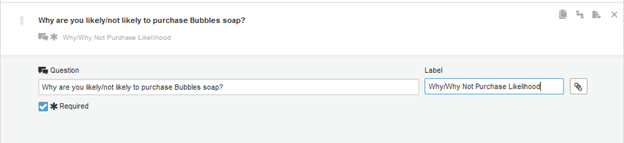
- Question text and a label, if desired (labels are not shown to respondents but can be used for back-end reporting).
- Select checkbox if you want to make the question required (respondents are required to answer the Discussion question before they can continue to the next survey screen).
Other options include:
- Select clip icon to attach an image or video, if desired.
- Click FINISHED to save the question.
Shown below is the programming for a Required Discussion question, where each respondent will be able to respond before seeing how others answered the question:
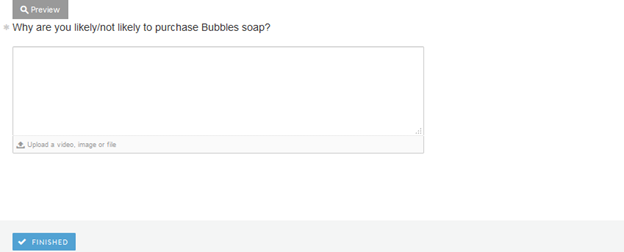
Once set-up is complete, the Preview below will show how the question will appear on the survey platform:
Continue reading:
For more details see:
Comments
0 comments
Article is closed for comments.