
Multi part questions are a useful tool for gathering personal information from respondents using existing pre-programmed text fields. Multi part questions can be used to capture:
- Age
- US Address
- International Address
- Phone number
Programming Steps
From the New Question dropdown menu, select Multi part.
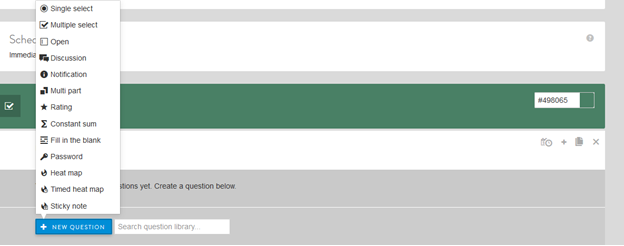
Next, fill in:
- Question text and a label, if desired (labels are not shown to respondents but can be used for back-end reporting).
- Select checkbox if you want to make the question required (all have to answer it to go to the next survey screen).
- Choose Type of Multi part question (US Address, International Address, Age or phone number).
Other options include:
- Select clip icon to attach an image or video, if desired.
Age
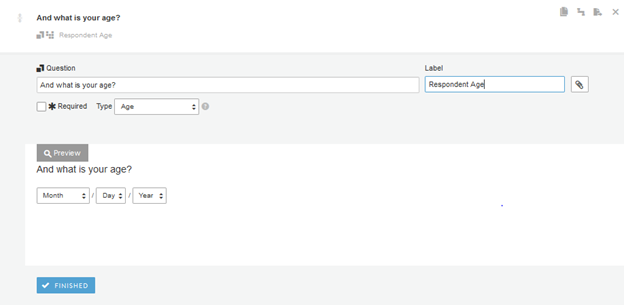
Choosing the Age type will yield the following result. This field is useful for profile and screener surveys.
US Address
The programming and preview of the US Address type are shown below:
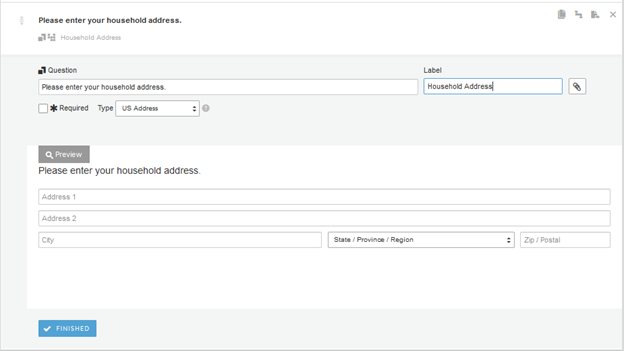
- Note: US Address does not validate zip codes or distinguish between numerical vs. non-numerical characters, so always review and QA the data on the back-end.
International Address
Below are the programming and preview for International Address. Notice there is now a fillable field for Country. If your respondents are both international and US, you will want to use the International Address type:
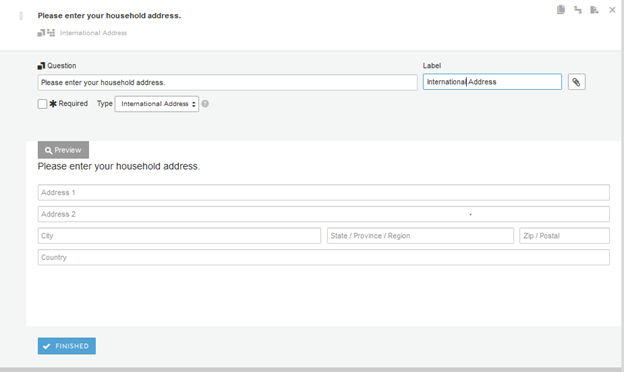
- Note: International Address does not validate zip codes or distinguish between numerical vs. non-numerical characters, so always review and QA the data on the back-end.
Phone Number
Finally, the phone number type of Multi part question looks like this:
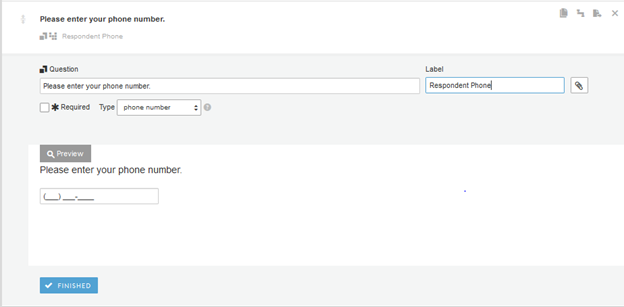
- Note: Phone number does NOT allow respondents to enter non-numerical characters.
Finish
Click FINISHED when done.
A separate Multi part question will be needed to capture each type of respondent information above.
Continue reading:
Comments
0 comments
Article is closed for comments.