
Password questions are a great way for respondents to enter a specified password created by you. You can either upload a list of unique passwords or use one for all participants.
If you are using unique passwords (each participant has his/her own password), you will have to mail or email them separately with their unique password.
Programming Steps
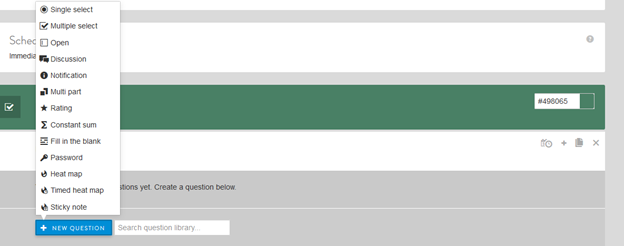
From the New Question dropdown menu, select Password.
Next, enter and update the following:
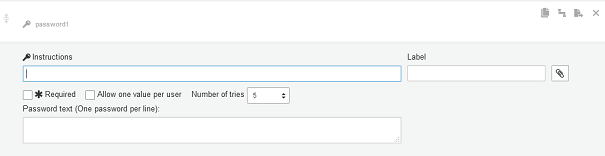
- Instruction text and a label, if desired (labels are not shown to respondents but can be used for back-end reporting).
- Select checkbox if you want to make the question required (all have to answer it to go to the next survey screen).
Other options include:
- Select "Allow one value per user" checkbox if you want to require unique IDs/values.
- Select "Number of tries" to limit the number of times a password can be attempted.
- Type or copy in a list of acceptable passwords in "Password text."
- Select clip icon to attach an image or video, if desired.
Example Set-Up:
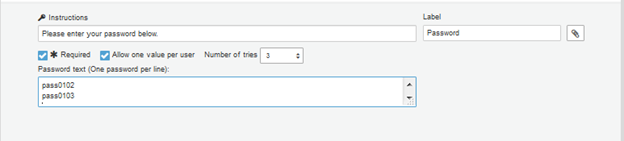
Set-up for a required Password, with only one value per user (preset by the administrator) is shown below. Respondent will only have 3 tries to successfully enter the password:
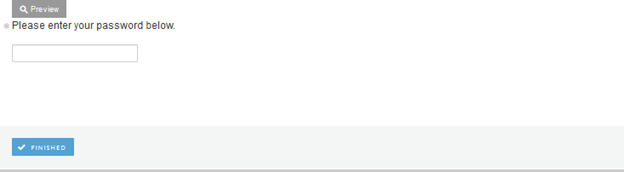
Once set-up is complete, the Preview below will show how the question will appear on the survey platform:
Comments
0 comments
Article is closed for comments.