
Fill in the blank questions are a useful tool for having respondents fill in a blank text field with a missing word or words based on instructions and question given.
Fill in the blank questions can be used to capture text input and numeric values. Sometimes it might just be easier to write your short open end as a sentence. Other times you may want to test what words (adjectives or attributes) respondents associate in a specific context.
Programming Steps
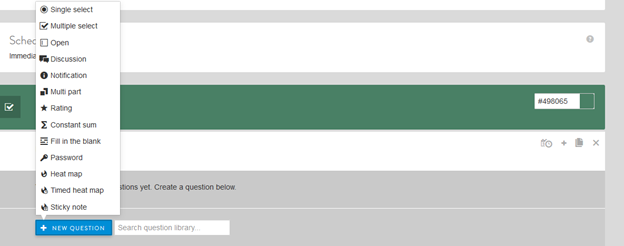
From the New Question dropdown menu, select Fill in the blank.
Next, fill in:
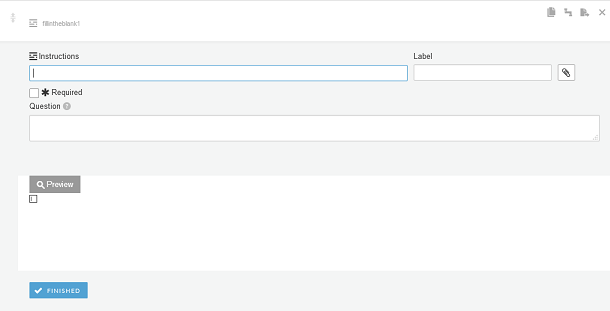
- Instruction text and a label, if desired (labels are not shown to respondents but can be used for back-end reporting).
- Select checkbox if you want to make the question required (all have to answer it to go to the next survey screen).
- Question text.
- To insert a Fill in the blank field, simply type three or more underscores "__" (Click on the question mark next to Question for help with this question).
Other options include:
- Select clip icon to attach an image or video, if desired.
Click FINISHED to save the question.
Example Set-up
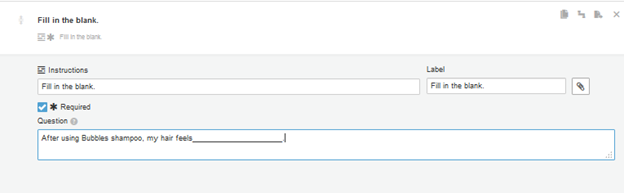
Shown below is the programming for a Required Fill in the blank question, where each respondent will be able to complete the given statement with a personal response:
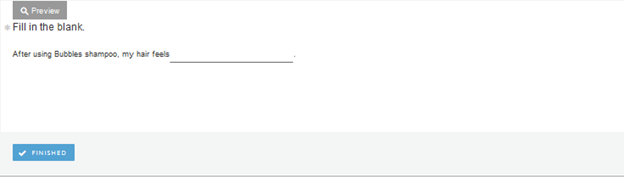
The Preview for the above programmed question looks like this:
Comments
0 comments
Article is closed for comments.