
Piping is a useful tool to pull in text or respondent answers from one question into questions programmed later in a research activity. The following functionality is available:
- Piping question text
- Piping respondent answers
The following shows how to create and apply tokens. Also, refer to tips and applications at the end of the article.
Creating a Piping Token
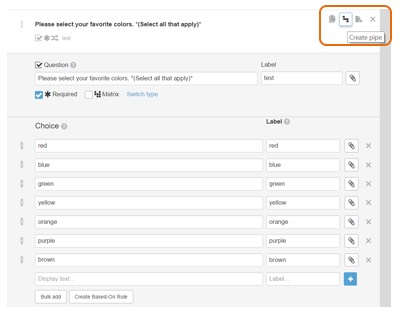
- After creating a question, click on the Tetris-like symbol on the top right of the question section (hovering your mouse over the icon will show "Create pipe"). The multi select question in the example below is "Please select your favorite colors."
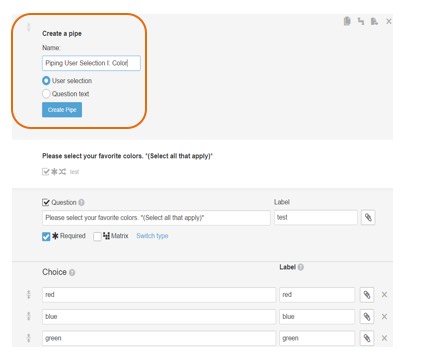
- A "Create a pipe" section will ask you to create a piping token based on either question text or user selection. In this case, we want to create a piping token for the color(s) that a respondent will select. Therefore, we select "User Selection."
- Name your new piping token. For example, in this case, we name it "Piping User Selection I: Color." Click on “Create Pipe” to finish.
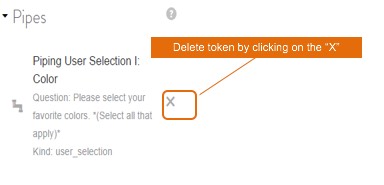
- As confirmation, after creating this new piping token, you will see the new token toward the top of the page, above all of the activity questions. You can also delete tokens here by clicking on the “X”.
Applying a Piping Token
- After creating your Piping Token, you will notice a new icon on each of your questions. The Tetris-like symbol used to create the Piping Token will be available for your questions.
- You can now use this pipe to pull into the question text or into answer choices of your question.
- The piping button appears if you access a field that allows for piping, i.e., if you are typing your question text, the piping button appears above the field as shown below. If you are entering answer choices for a new question, the piping button appears above the answer choice fields.

- Go to the question or create the question into which you want to pipe the text. This new question has to be on a different page and fall chronologically after the question from which we are piping.
- In this example, we are asking respondents to comment (open-end/verbatim responses) on why they chose a particular color(s). We want to pipe the colors respondents selected earlier.
- Apply the Piping Token by clicking on the "piping" icon found above the question text box of your new question. Clicking on this icon will display the piping token(s) you created.
- Select the Piping Token you need. This will populate the question text box with the Piping Token. If you created multiple Piping Tokens, you will select the correct token for each question. It is important to clearly name your Piping Tokens to help you easily identify which one to pull in.

Testing
- The token will display as the selected answer choices from the previous question. To ensure that piping works as intended, test the survey. This allows you to see what respondents will see when the activity is live.
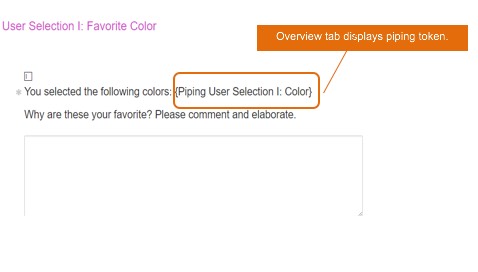
- The overview tab will ONLY display the Piping Token name. When testing (and in live mode), selected colors will populate the question text. The second picture below shows the Piping Token in action, based on selected choices: purple, red, and green.
- Multiple selections will be spaced by "and" and commas as needed in the piped text.

Tips and Applications
- You can apply both a Piping Token and a based-on rule in the same question. This is useful for scenarios where you want to pipe in question text or user selections from different questions. For details on based-on rule, read here.
- You can apply multiple Piping Tokens in the same question. One application is to compare feedback on two different products, messages, etc.
For example, you may want to ask a respondent at the end of the activity, "You offered this feedback {Piping Token Feedback Product A} for Product A, and this feedback {Piping Feedback Product B} for Product B. Please explain why you think this way, and if given a choice which product would you choose?"
- Piping Tokens are not only useful for User Selections, but also Question Text. Let’s say you want to gauge high-level feedback on a new value proposition or product message. You know you will need several pages to cover all topics and questions.
Example:
Page 1 – value proposition or product message
Page 2 – initial reactions/open-end
Page 3 – ratings, agree/disagree statements,
Page 4 – final thoughts and suggestions for improvements
To help respondents reference the value proposition, you can pipe it in a “NOTIFICATION” question-type at the top of each page, without repeatedly hard coding the message each time. You can then easily reference text at any point afterwards in the survey with a Piping Token.
Continue reading:
For more details see:
Comments
0 comments
Article is closed for comments.