
Randomizing pages (or questions) is an important feature for certain activities. It gives you the ability to address order bias if you are doing a concept test and showing different concepts to members.
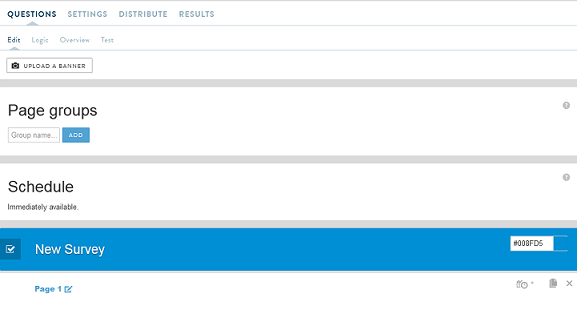
To randomize pages, use the "Page Groups" functionality.
- First, make sure your activity is programmed, and you have each question that is going to be randomized on separate pages. If you have a series of concept questions that should be shown together (on the same screen), add them all on the same page. If you have one question per concept, create one concept page for each concept.
- Next, create your "Page Group." Then, you want to add all pages you want to randomize to this page group.
- The "Page Group" feature is located toward the top of your activity edit page.
- Type a name for your page group. For this example, we are calling it "Message Testing." Click "Add" to create your page group.
- Now, add the pages you want to randomize to your page group. Go to the page you want to add and click on the plus button on the right.

- A dropdown menu will appear. Click on the page group you want to use for this randomization. Repeat this step with all the pages you want to randomize.

- After adding pages to your page group, you will see a note for each page that is added to the group that shows you which pages belong to which group.

- Lastly, go back to the "Page Groups" menu and click the randomize button to randomize the pages. This way as users come in, they will see each page in the page group in random order.

- As always make sure you test your activity to ensure the logic works the way you want it to before sending out to members.
Comments
0 comments
Article is closed for comments.