
Constant Sum questions are a useful tool for having respondents report ratio or relative value. Constant Sum questions can be used to capture:
- Value allocation
- Relative importance
Programming Steps
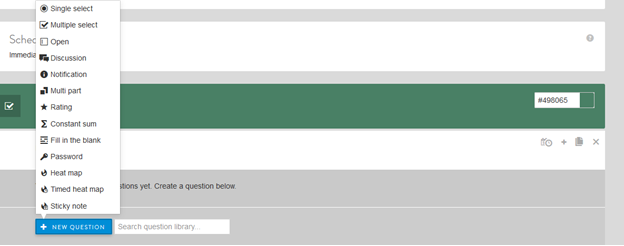
From the New Question dropdown menu, select Constant Sum.
Next, fill in:
- Question text and a label, if desired (labels are not shown to respondents but can be used for back-end reporting).
- Select checkbox if you want to make the question required (all have to answer the question to go to the next survey screen).
- Choose the sum value (the number up to which responses must add).
- This question type requires numeric responses. It also requires you to set up a sum value that respondents need to enter. This value will be enforced even if you do not set the question as required. In this case, respondents can only move forward if they enter the required total amount or leave all fields blank.
- Validation information is shown to the respondent on the screen to help them answer the question, see below for examples.
Other options include:
- Select clip icon to attach an image or video for question text or answer choices, if desired.
- A "none" option and/or an "other" option can be added. These options will automatically be shown at the end of the list – even when the list is randomized.
- The "none" option will show as checkbox underneath the question.
- The "other" option shows as a separate line at the bottom of your list. If respondents enter something into the other specify box, they have to enter a number into the constant sum field, even if it is a 0. This can sometimes be confusing to members. It is recommended to use other specify in this question type sparingly or when a significant number of responses are expected in other not listed category.
- Categories can be randomized, if applicable to research needs.
- Click FINISHED to save the question.
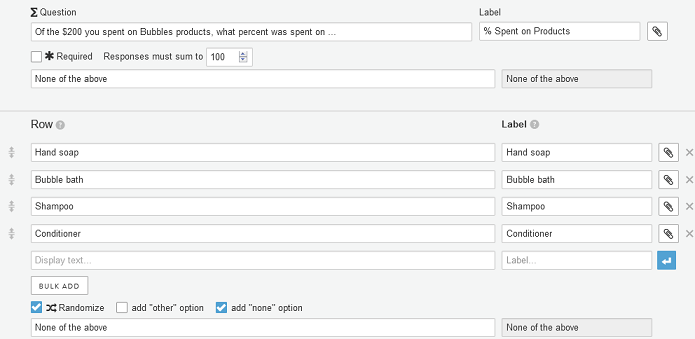
Shown below is the programming for a Required Constant Sum question, where respondents will be able to assess a percentage spent on each of the four products (Randomized, with an option for “other” product(s) at the bottom), where the sum value must equal 100:
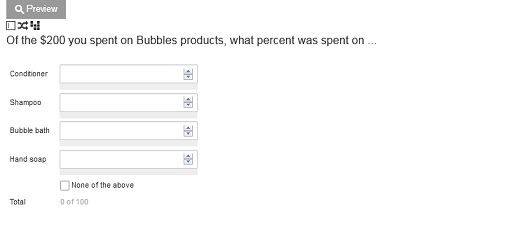
The preview for the above programmed question looks like this:
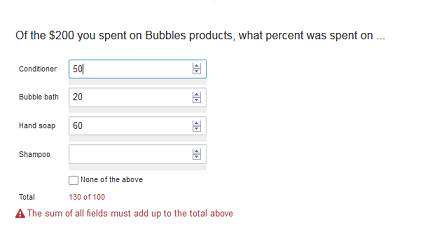
The screen below shows how the question will appear on the screen for respondents including validation error messages.
Continue reading:
For more details see:
Comments
0 comments
Article is closed for comments.