
After your activity has completed. You can create a top line report and share the results with any of your clients.
To begin. Go to the Results tab in the activity you want to create a report in.
Once there. There is a button called "Create a Report".
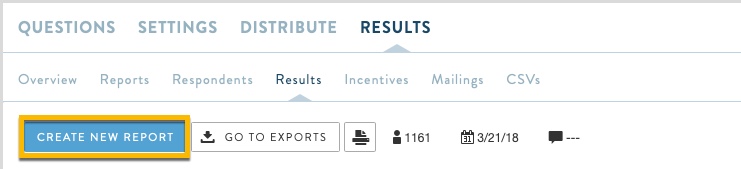
Once you get there you'll notice you have a few options.
To get started. First lets title our report.
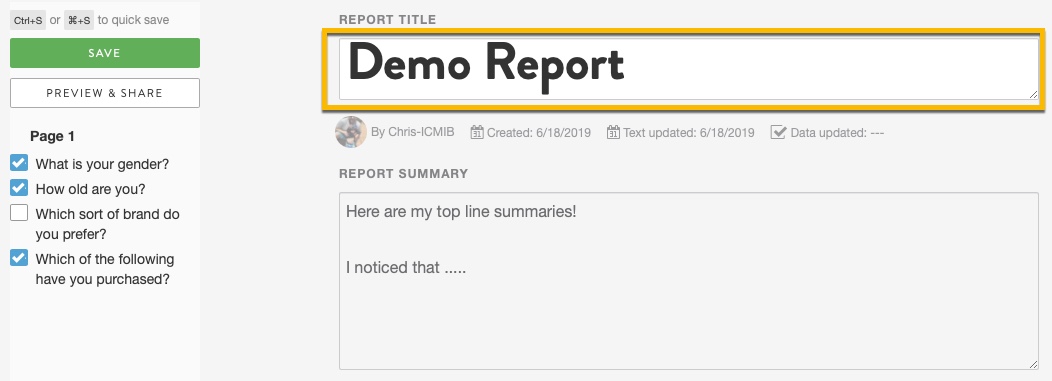
Once you have titled the report. You can include a report summary below. This can include any overall findings you noticed in the activity.
Once you've titled and written your summary. You can select which questions you'll want to include. 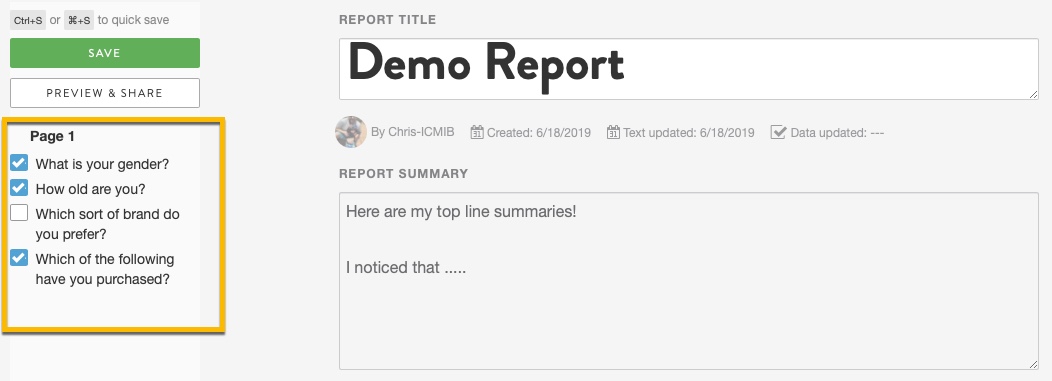
By default, all questions are left unselected. Once you've selected the questions you want to include. You'll be able to title each question and write an individual summary.
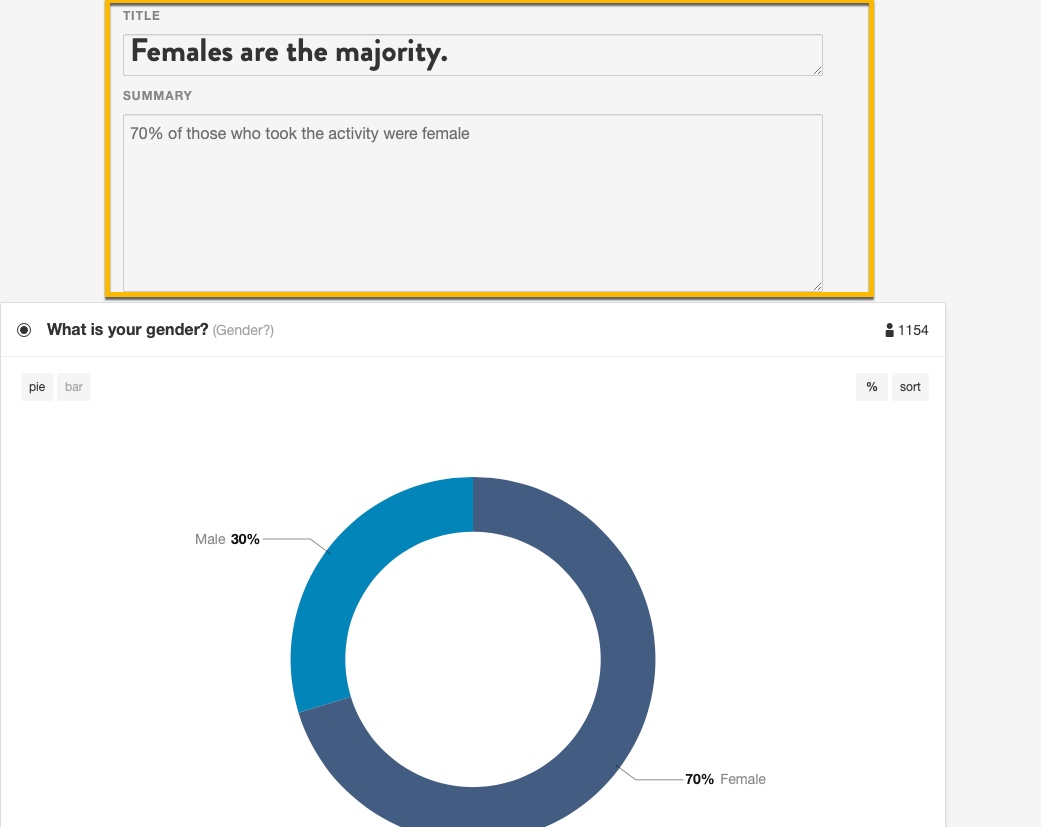
Once you have selected all of your questions and have written your summaries. You can share with your clients.
Scroll up to the top and click "Save" to save your progress.
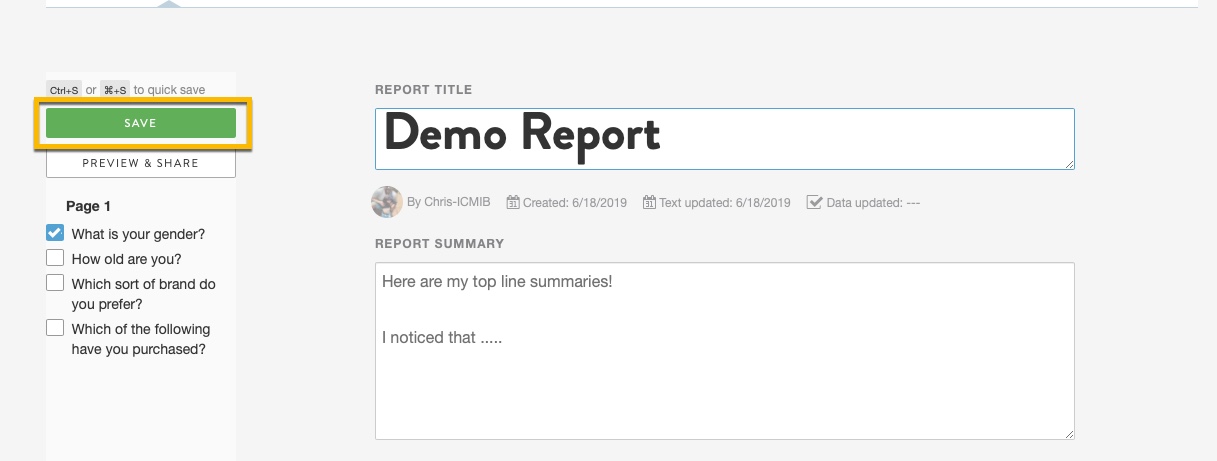
Once you have saved your work and are ready to share. Click on the "Preview & Share" button.

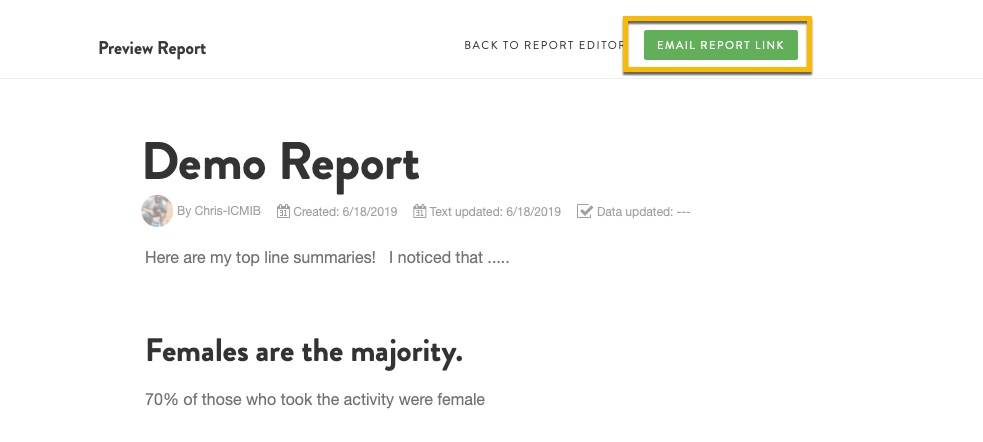
This will take you to a new screen to show you a preview of your report. There will be a navigation button on the left-hand side of the screen so if your clients are only interested in seeing specific questions. They can jump around.

To share with your clients. Scroll to the very top and there will be a button called "Email Report Link"
This will take you to a new page where you can add your clients and write and preview the email they will receive.
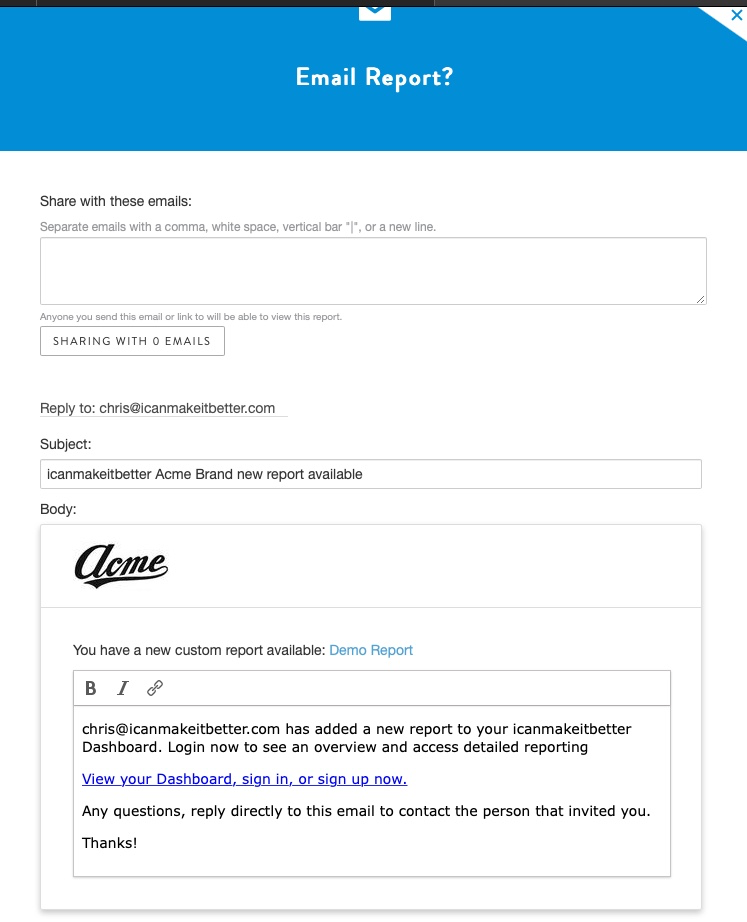
When you are done with your email. You can select send at the bottom of the page and your client will be invited to view the activity.
Your client will have to create an account and will be able to view it in their client dashboard.
For more information about that, you can go here
Comments
0 comments
Article is closed for comments.