
The filter features within the Activity Results tab offer basic and advanced filtering features.
The Filters feature is located at the top right section of the Results ribbon.

Basic Filters
These are preset filters built into the platform that include two sub categories: Membership and Completion.
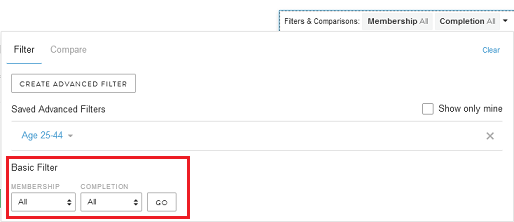
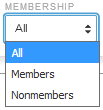
- Membership: is the respondent’s status within the community; whether they have joined the community or not. If it is a recruitment activity or you have a public community with public activities, there may be respondents that are Nonmembers.
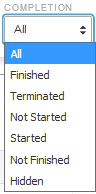
- Completion is the respondent’s status within the specific activity. As the Results tab is real-time, results will update for the filter as respondents complete the activity.
Advanced Filters
Advanced Filters are custom filters that can be created using multiple variables such as responses from the current activity and previous activities.
Create Advanced Filter
- Click CREATE ADVANCED FILTER.
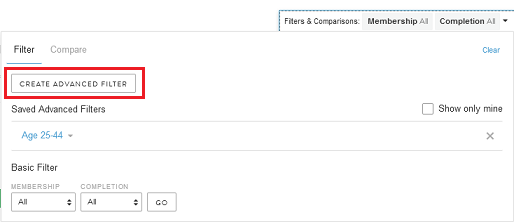
- This will redirect to the User tab, select the specific respondent specifications needed for the filter. For more details navigating and filtering in the User tab, read here.
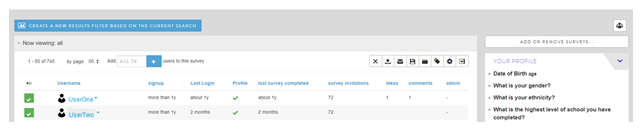
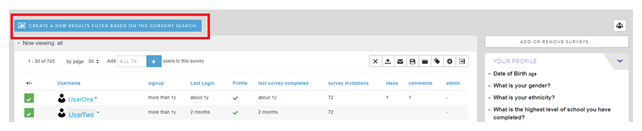
- Once the correct respondents have been selected, click CREATE A NEW RESULTS FILTER BASED ON THE CURRENT SEARCH.
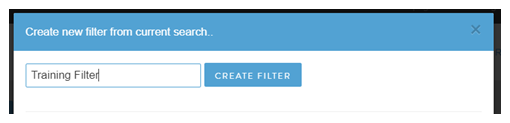
- Name the filter and click CREATE FILTER and it will be applied. You will automatically return to the results page. The new filter will be active and filtered data displayed in the results.
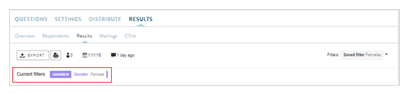
- The applied filters will be shown underneath the Results ribbon.
Applying Existing Advanced Filter
Once the filter has been created you can use the same filter whenever you want. Filters can be used across different activities and by other admin users.
- To use an existing advanced filter, click on the filter name from the Filter pane under Saved Advanced Filters. The Results page will refresh with the filter now applied to the data.
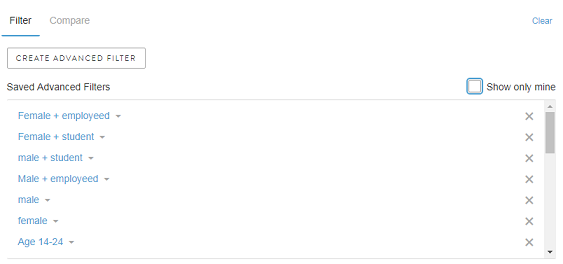
- To only view the advanced filters you created, select the checkbox "Show only mine."
- To remove a filter and show all data again, click on "Clear" in the top right corner of the Filter dialog box.
- To delete advanced filters, click on the "X" next to it. Deleting filters cannot be undone. If you delete a filter in error you will have to set it up again using the steps outlined above.
Note: Currently Advanced Filters are only available for platform filtering. They cannot be used to filter data exports.
Comments
0 comments
Article is closed for comments.