
User Access Notification
An automated email is sent to each email address once it gets added to the Customer Boardroom.
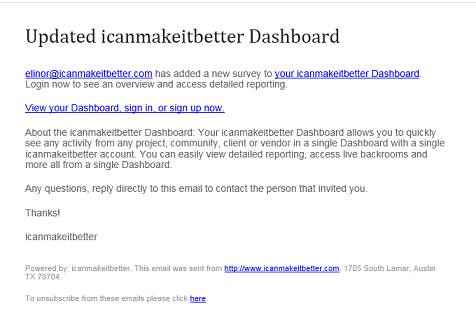
If users don't receive the notification email, you may provide them with the link to the "Dashboard" or Customer Boardroom: dash.icanmakeitbetter.com
Accessing the Customer Boardroom
New users:
These are users who don't have admin rights on the community platform and need to create an account with username, email address and password to access the Customer Boardroom.
Creating an account through the dash.icanmakeitbetter.com link will give users access to the Customer Boardroom but not the actual community platform. These users do not have admin access and cannot program, edit or change any activities. They do not appear as users in the User Tab.
Admin users:
You may want to add Customer Boardroom access for admin users. The Boardroom is an easy way to keep track of active and closed activities. For clients or internal stakeholders with admin access to the community platform who are not as familiar with the community navigation or only focus on certain activities, this is a good way to keep them focused on what is relevant to them.
Admin users can use their regular email address and password to access the Customer Boardroom.
Note: Admin users can only see activities that they were added to their Customer Boardroom. For more details on how to add activities to a user's Customer Boardroom, read Customer Boardroom - Set Up.
Features
Within the Customer Boardroom, users see all activities added to their Customer Boardroom as individual items.
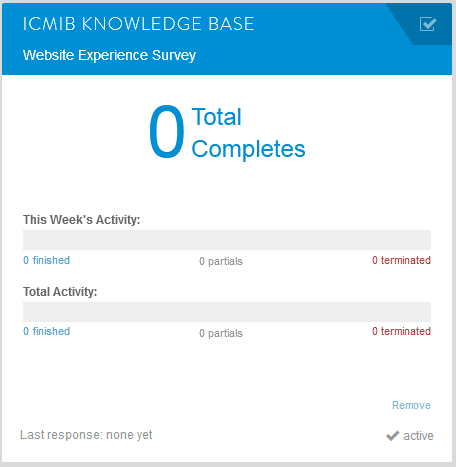
For each activity the following details are shown:
- Activity name
- Number of total completes
- Number of finished, partials, and terminated in the current week
- Number of total finished, partials, and terminated
- Date of last response
- Status: Active, pending, closed
- Option to remove activity from boardroom. This is useful if people are not managing an activity or it is not relevant to them.
By clicking on the activity, the user is taken to the Backroom. From here, results for each question can be reviewed. For more details on the Backroom read here.
Filtering
For users with a long list of current and past activities, filtering is essential for easy navigation.
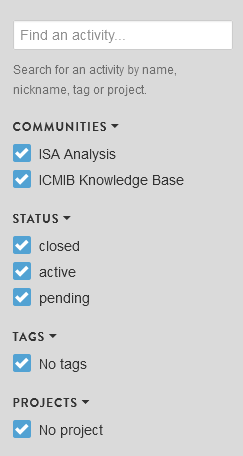
Filter options:
- Communities: If you are running multiple communities, they can all be accessed through the same Customer Boardroom.
- Status: Active, closed or pending activities.of This will give them control to only select which activities they want to see.
- Tags: Each activity can be assigned a Tag for easy referencing. Tags can be assigned in the Settings page of the activity when creating the activity.
- Projects: Each activity can be assigned a Project. Projects can be assigned in the Settings page of the activity when creating the activity.
Continue Reading:
For more details see:
Comments
0 comments
Article is closed for comments.