
This feature allows admins to flag an open response or discussion comment using three attributes:
- Colors
- Emojis
- Tags
This feature enables admins to add these flags to a response and then enables admins to filter and compare responses based on these flags.
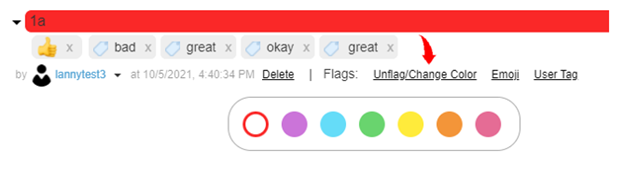
Below are examples of what a response looks like after being flagged.



Flagging a response
A response can be flagged on any survey by going to the Result Page of the activity. Hover to the right of the date of an open-end verbatim for the admin menu to appear.
-
Click Flag under any open response or discussion questions and choose a color.
- Click Emoji under any open response or discussion question and choose any number of emoji.

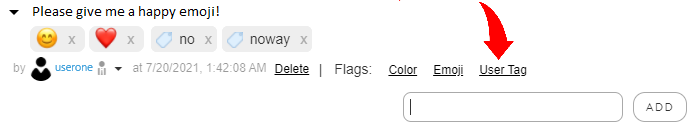
- Click Tag under any open response or discussion question and create any number of custom tags. By entering a space in the tag field, a list of existing tags for this question is displayed. Click to select or create a new tag.
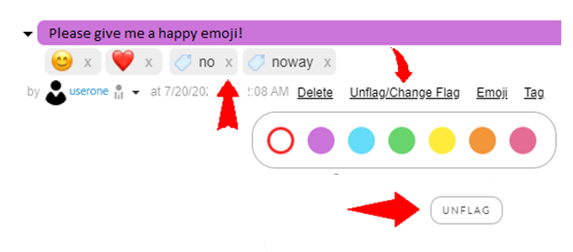
Flags can be removed by either clicking on the Unflag button (for color flags) or by clicking on "x" next to a Tag/Emoji under the response.
Filter by Flags
You can filter by flags by using the Filters and Comparisons option under the Results Tab as shown below. These filters will show responses for the filtering criteria selected for Open-ended questions. Note: Closed-ended question will continue to show unfiltered results.

Steps:
• Go to Filter & Comparisons
• Select either a color/emoji/tag and then click Go and results containing that specific Flag will be displayed.
Note that selecting multiple flags (example: a color AND an emoji) will filter down to results containing both those flags.
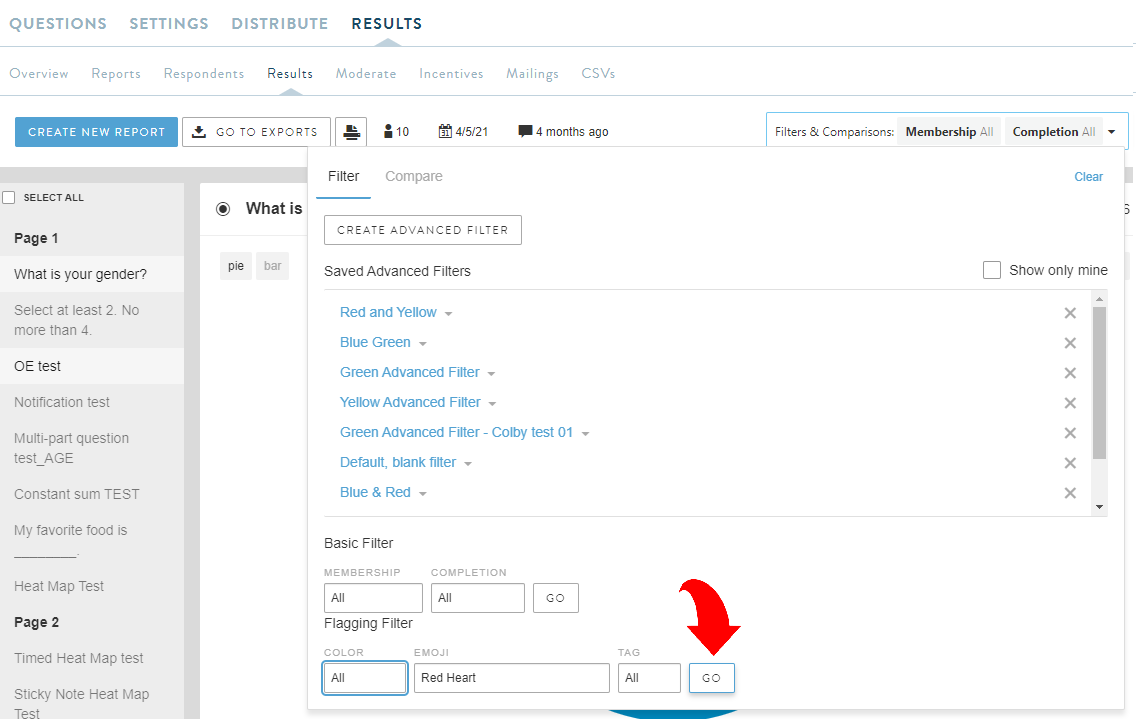
Color: Select a Color in filtering and after clicking "Go", only users with at least one response with that particular color used for flagging will be shown.
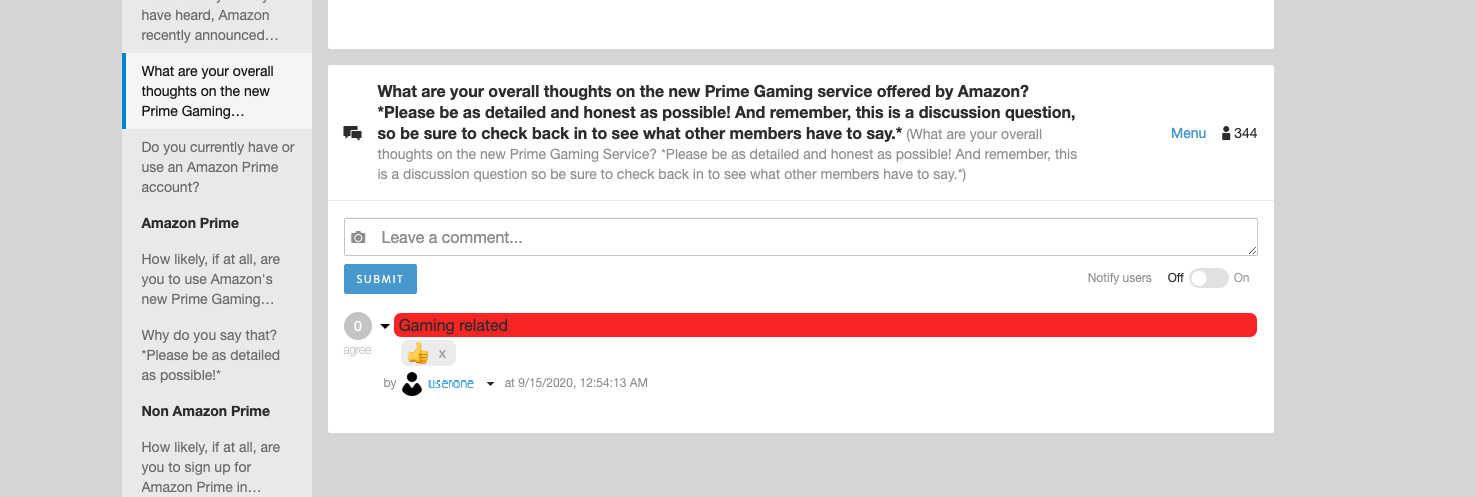
Emoji: Select a Emoji in filtering and after clicking "Go" only users with atleast one response with that particular emoji used for flagging should be shown.
Tags: Select a Tag in filtering and after clicking "Go" only users with atleast one response with that particular tag used for flagging should be shown.
Exporting Flags
You can export a report containing all responses with its corresponding flags.
• Click on the Results tab of the project you are in. Then Click on Results again.

- Click on "GO TO EXPORTS"
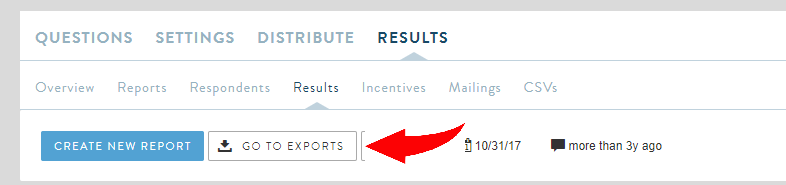
This will then take you to the Exports page
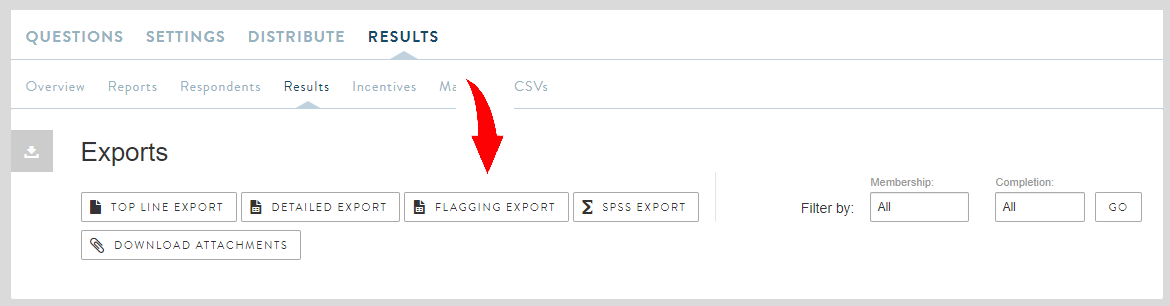
- Click on "Flagging Exports". It will then take you to the following page where a report will be generated.
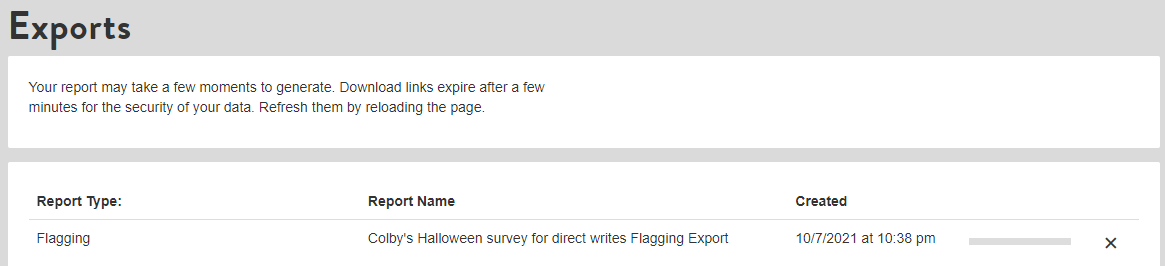
- Once a report is ready (usually in a few seconds), a Downlink link will appear. Click on it and it will download a CSV file containing the data.
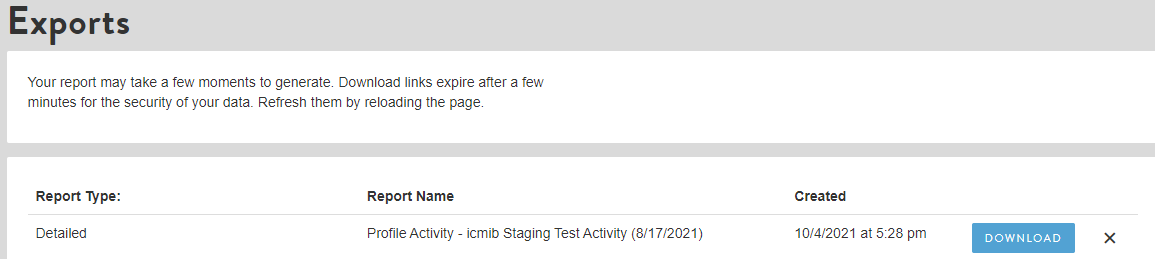
Opening the file will then let you view the responses along with their tags in excel for analysis.

Comments
0 comments
Article is closed for comments.