
The email tracking feature gives you a snapshot into emails you've sent out both on an
activity level as well as at the user level.
With a few clicks you can see how many emails you've sent out, who received them, and whether they've been opened.
This feature is supported currently for invites and reminders that are sent through activities.
Activities
- Each activity has a Mailings tab within the Results section.
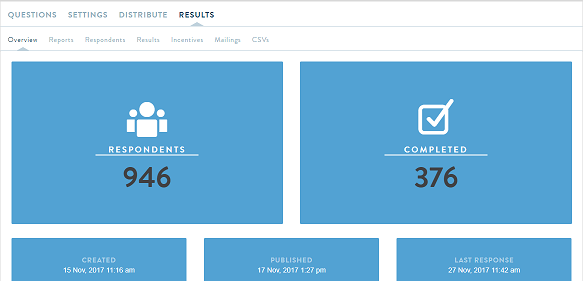
- After activating and inviting members to an activity, you can monitor and review your emails real-time.
- When you click on the Mailings tab, you can see all the mailings that have been sent for that activity.
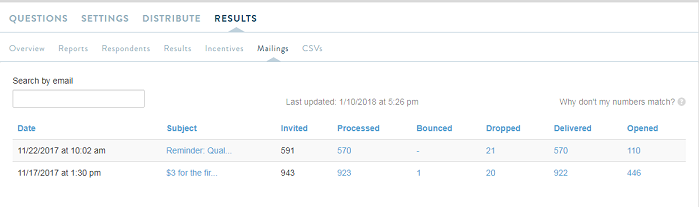
There are 8 headings:
Date: Provides the date and time when the mailing was started.
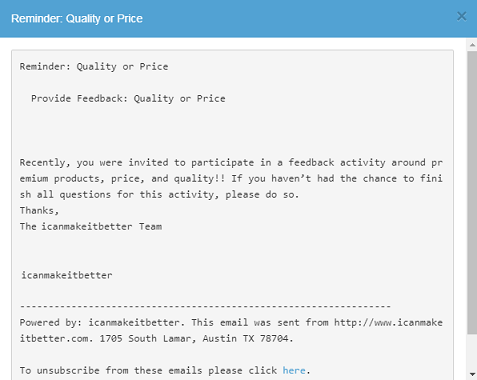
Subject: By clicking on the mailing link under the subject heading, a pop-up with the invite text appears. The pop-up shows the email content without formatting.
Invited shows the number of members you included for the mailing.
Processed is the number of emails that were processed from our site to be sent out.
Bounced means the mail server tried to send the email, but it could not be delivered. The address could be invalid or the user’s mailbox could be full.
Dropped means that when the mail server tried to send the emails, emails could not be sent. Usually this will happen if users have opted out or the emails have bounced previously.
Delivered means that it was sent out to your user. This may not always mean he/she received it. Sometimes it can be in the spam filter, or if their company has a firewall, it may be there as well.
Opened means that the email had been opened.
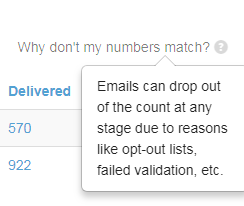
- If there are differences between columns or numbers don't seem to add up, this can be due to several reasons, including invalid email addresses (e.g., “.con” instead of “.com”), previous bounces, or opt outs.
- The mailing tab updates on its own every 60 seconds. You won't have to worry about manually refreshing your page.
- To view which email addresses were processed, bounced, dropped, delivered, or opened, click on the number for the mailing you are interested in.

- You may also search an email address using the search box. Be sure to enter the entire email address and the search will return results that detail in which mailing an email address was included. For activities with many rounds of invites and reminders, this is a useful feature.
Account Page
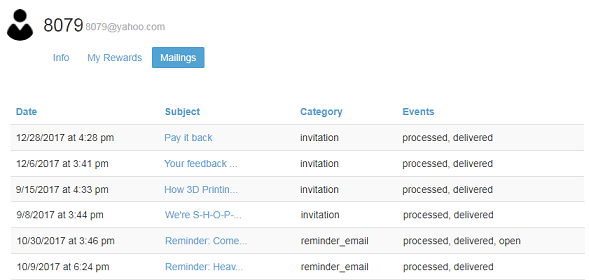
- Each user account also has a mailing tab.
- You may want to see how many invites were sent to a specific member, for which activities and the status for each.
- From the users tab, you can click on any user, go to his/her account and see what emails have been sent and whether they have been received or opened.
Comments
0 comments
Article is closed for comments.