
After an activity has closed, it is best practice to grant incentives as soon as possible, complete your data review within a week and then grant incentives.
When ready, simply go to the activity and click "Incentives" under the “Results” tab.
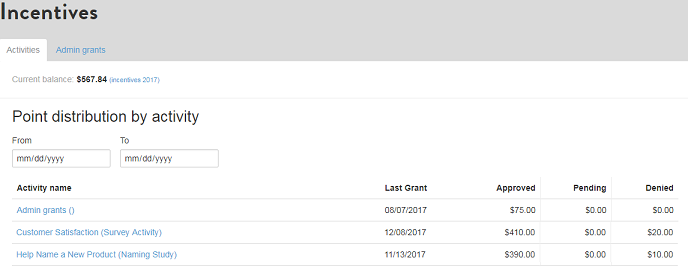
You may also use the "Incentives" tab in the Admin Bar to find the activity for which you need to grant incentives. This page displays a list of all activities for which incentives have been set and includes information on incentive status (approved, pending or denied). An example is shown in the image below.
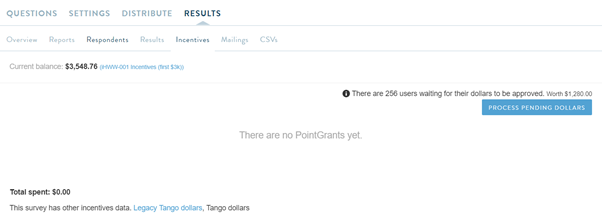
Once you are on the incentives page for your specific activity, you see information on the current incentive funds balance, total spent on that activity thus far, and how many users are waiting for incentives to be approved.
Click on "Process Pending Dollars" to begin the distribution process.
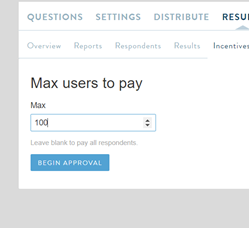
The next page will give you the option to set a max number of users to pay. This allows you to set a limit on the number of members that will receive an incentive based on the order in which they completed the activity. This is helpful, for example, if you only need to distribute incentives for the first 100 members who completed the activity. The feature will automatically choose the first members who responded. If this were the case, you’d simply enter “100” in the text box and click “Begin Approval.”
If you are simply paying out all responses, leave this text box blank.
From there, you will see a list of all respondents that are pending approval/denial to receive their incentive.
You can distribute incentives to individual members one at a time or to all at once. If distributing to all, you always have the option to remove individual members and deny their incentive.
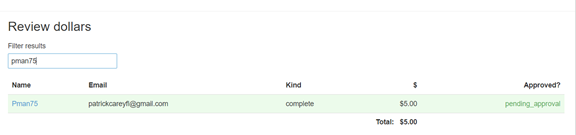
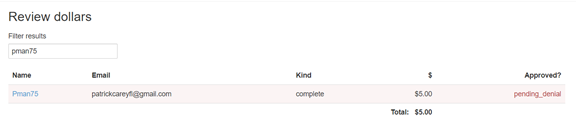
If you want to manually distribute individual's incentives or you need to change someone’s approval status, enter their email or username in the “Filter results” box at the top to view them individually. Then approve or change their approval status, as needed, simply click on “pending_approval” or “pending_denial.”
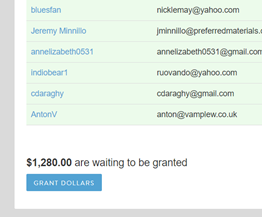
Once approvals are all set, scroll to the bottom of the page and click “Grant Dollars.”
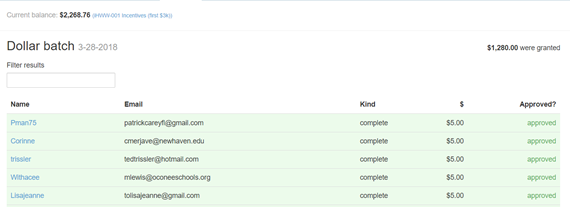
The next screen shows which users were approved/denied, along with the total amount granted.
Comments
0 comments
Article is closed for comments.