
The User Tab is where you can see who is in your community and filter users based on activity, past survey results, and tags. Frequently used filter criteria include: answers to specific survey questions, name/email, date (login, invitation, completes) and user type.
First you add or remove surveys so you can filter for specific data. Follow the instructions below:
Add/Remove Surveys for Filtering
You can get started adding a new activity in just a few easy steps:
- Go to the User Tab
- On the right-hand side, you’ll see a box that says, “ADD OR REMOVE SURVEYS…” and click on the box
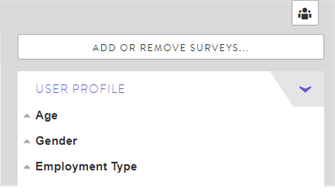
- A new window will open that shows every survey programmed in the community including information on survey status, number of completes, and last visit. You can scroll through the list or type in a name in the search window at the top left.
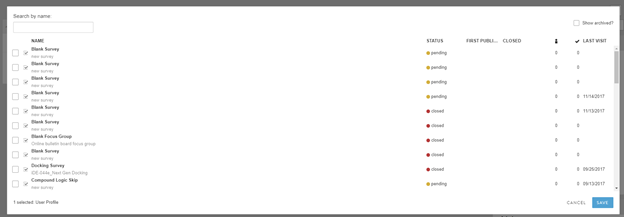
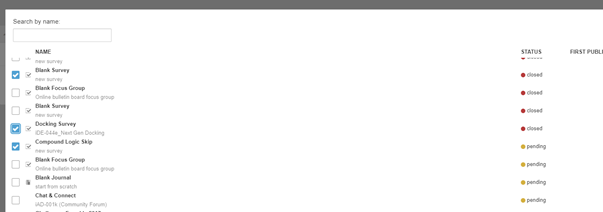
- Select the survey(s) that you would like to append to or remove from the user data by checking the box next to it.
- You can attach up to 3 different surveys to your user data. An example is shown below:
- To “Add” or “Remove” a survey, you must press save at the bottom right of the window.
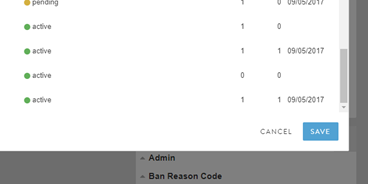
- ADD Survey: Once saved, you will see the additional surveys show up on the right navigation bar under the “ADD OR REMOVE SURVEYS.”
- REMOVE Survey: Once saved the surveys you removed will not show up under the “ADD OR REMOVE SURVEYS” navigation bar anymore. Note that removing any added surveys will reset your filter criteria.
- And example with two surveys in the right navigation bar is shown below:
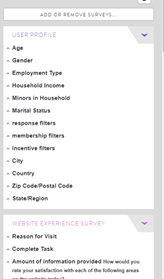
Filtering User Data
Filtering user data is simple. Make sure you have the surveys added to the right navigation bar that have the user data you want to filter by. Then select the data point and either enter the info you want to filter for or check a box (for closed-ended questions). The following explains the steps for a few common filtering criteria:
- Name/Email
- Last Login
- Surveys Completed
- Survey Invitation
- Admin
- Closed-End Choices
- Tags
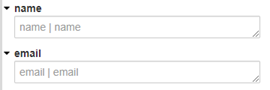
Name/Email: Filtering User Data by name or email address is typically used if you are initiating individual incentives, want to follow-up with specific members of the community or review user profile data and information.
To filter, copy and paste the name or email address into the appropriate field. You can also type in a part of your search string and the output will be anything matching your string. To actually see your results, click out of the search field (i.e., clicking anywhere on your screen) to indicate you finished entering your filtering criteria. The filtered users will be listed in the User Tab.
Date (Login, Invitation, Completes): Sometimes you may want to do an audit of the community and understand some basic community stats. These could be number of members who logged into the community, have been invited or completed a survey in the last month. You can also filter to determine the number of members who completed a certain number of activities, e.g., between 1 and 7 surveys. You can easily drill down and see members and a count by entering desired filtering criteria.
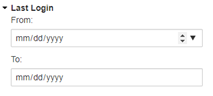
Last Login – You can filter by specific date ranges. For example, if you are looking to see the number of members who have logged on to the community in the past 3 months. You’d enter e.g., the range 01/01/2018 – 03/31/2018 (the end date would reflect your current date) to procure the numbers.
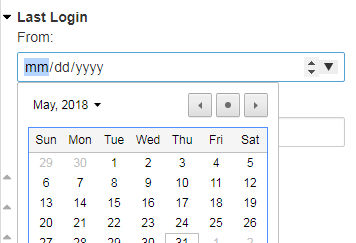
By clicking on the arrow in the right corner of the date field, a calendar pops up.
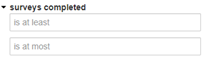
Number of Surveys Completed – Enter in the range that you are looking for to filter by (1 to X)
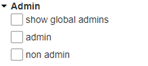
Account Status: Besides members, the User tab also shows admin users, i.e., your own account and anyone else in your organization with admin access to the community. Filter out Admins to understand an exact number of members in the community that are not associated with your team or client. Simply select the non admin choice under Admin to show all general user accounts/ member accounts.
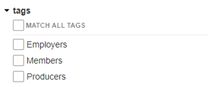
Tags: Filter by "Tags" in order to see counts or target subset and subgroups in your community. Tags are very useful to keep track of important member segments. To read more about manually tagging members, read here.
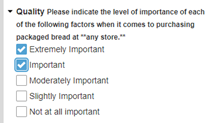
Survey Responses/ Close End Choices: Let’s say you want to only see users who answered a specific survey question in a certain way. E.g., you may want to invite members to a new survey based on previously stated preferences or purchase behavior. Find the relevant survey and question, then select the answer choices you are interested in to see the members and counts that meet your criteria.
Comments
0 comments
Article is closed for comments.