
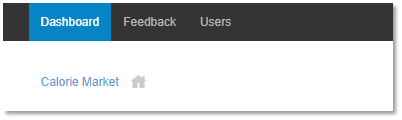
When logged into a community as an Admin, click on “Users” in the top ribbon to access all registered users in the community.
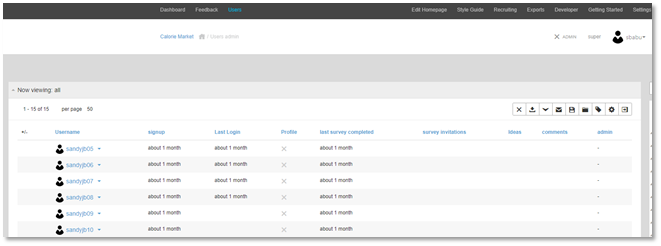
Click on the user name of the Participant whose password you want to reset.
On a user's profile page click on the "Edit Account" dropdown button at the top right of the user profile page.
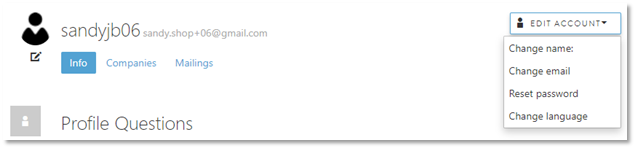
Click on "Reset Password" option in the dropdown list. This will trigger a Password Reset email to be send to the user's address with the following content. The sender will be support@icanmakeitbetter.com.
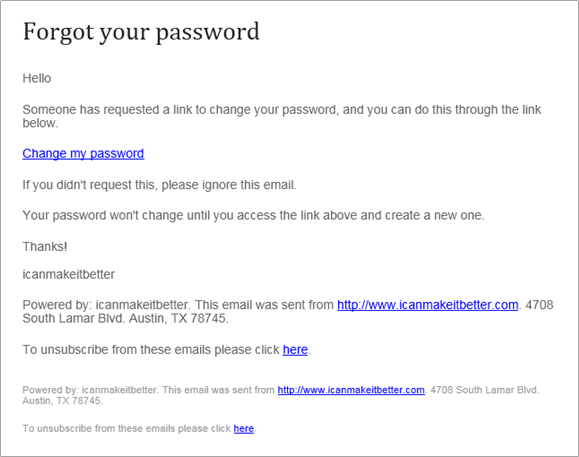
To reset the password, users have to click the “Change my password” link.
This process and email functions the same as if that user clicked "Forgot Password" on a login form.
As an admin you can send multiple reset password emails in case the user deleted or missed the email. Note that, the email may be in the user’s Spam folder.
NOTE: Make sure to remind the user when communicating to look for the change password email of the password requirements. Passwords must have:
- At least sixteen (16) characters in length.
- At least one letter
- At least one non-letter which can be either a special character (such as $,%,@ etc.) or number.
Comments
0 comments
Article is closed for comments.