
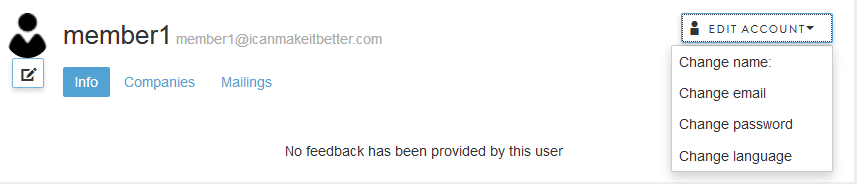
Passwords can be changed under the account settings. To access this section, read Edit Account.
- From your account, select Change Password.
- A new browser window will open with the following screen:
- Note that password requirements for the new password listed at the bottom
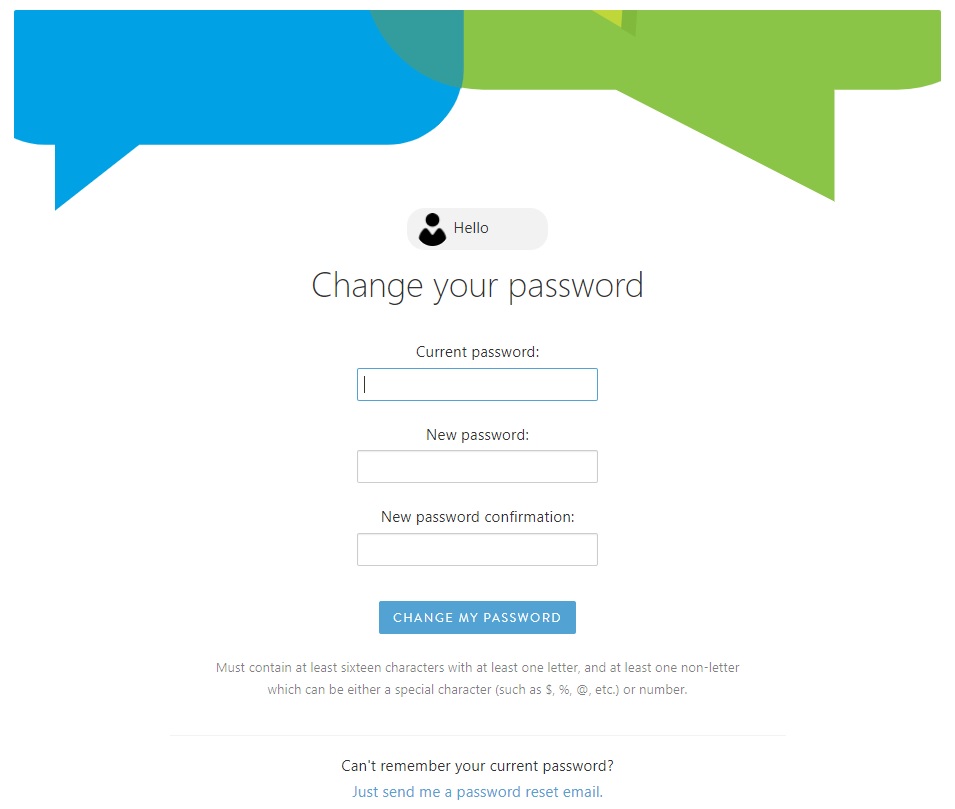
- Enter your new password twice and click Change my Password.
- If the password and password confirmation match and the password requirements are fulfilled a blue bar at the top of the screen will confirm: "Your password has been changed."
- If the password has not been changed the blue bar at the top will indicate an error, as seen below:
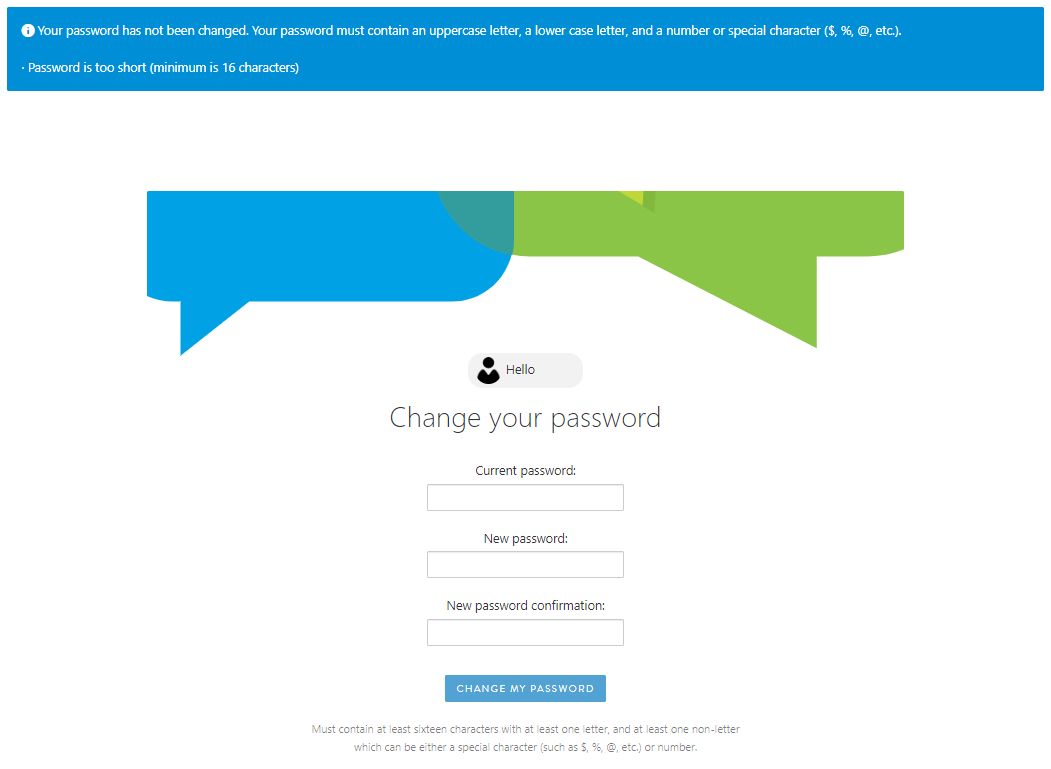
Remember to follow the password requirements. Passwords must:
- Be at least sixteen (16) characters in length.
- At least one letter
- At least one non-letter which can be either a special character (such as $,%,@ etc.) or number.
Comments
0 comments
Article is closed for comments.