
Using your company Twitter feed can be a great way to stay connected with your members and continue to provide them with up-to-date content on the community homepage.
Setting up your Twitter feed is simple and easy and should only take you five minutes!
Set Up
Create a new tile by following the basic steps. For more information on adding or editing tiles, read here.
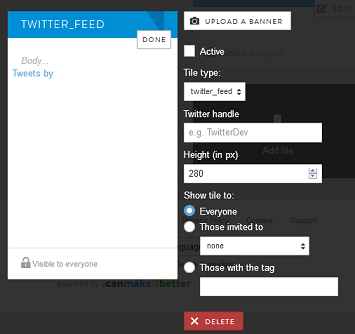
- In the edit tile dialog, select "twitter_feed" from the dropdown menu "Tile type."
- New fields appear, including "Twitter handle." Enter your desired handle.
- You may adjust the "Height (in px) to resize the tile and your feed on the homepage.
- You may change who can view the twitter feed. If you have different segments on your platform who should not see the feed, you can select specific recruiting activities or tags to specify who sees the tile.
- Update the tile title and body as you see fit, just as you would with any other tile.
- Select the "Active" checkbox.
- Click "DONE" to save your tile.
That’s it! After refreshing your homepage, you should now see the Twitter feed populated in the tile. Your members are able to scroll through the feed and read the tweets.

Continue Reading:
Comments
0 comments
Article is closed for comments.