
Settings
Update the Activity Settings to get your activity ready for fielding.
Go to the SETTINGS.

Update the following areas as needed:
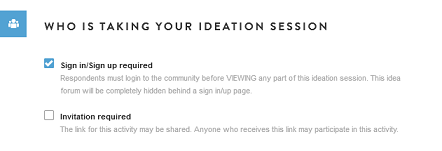
WHO IS TAKING YOUR IDEATION SESSION
The default settings are usually what you want for your survey: Sign in/ sign up required.
Update the settings if you wish to open the activity up to non-members.
Select the "Invitation required" checkbox if you want to make the ideation session only available to those who receive and invite.
ASSOCIATE IDEATION SESSION WITH A PROJECT
You are able to associate ideation sessions with a project. This is a useful feature for your clients or internal stakeholders and helps them navigate their research studies in the customer boardroom. For more information on use in the customer boardroom, read here.
- To associate the ideation session with a project, type in the New project in the text box and save the settings screen (bottom of the page).
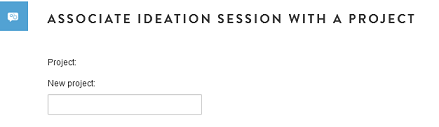
- After saving your page, scroll back to the "Associate ideation session with a project" section and check the project that now appears.
- After the initial creation of the project it will appear in all activities (new and existing activities). It allows you to associate or remove multiple activities at any time to projects.
TAGS
Ideation sessions allow you to set two types of tags, one is for internal reporting purposes, the other for respondent facing purposes. Both are explained in the following:
- Tags for client/ internal stakeholder reporting purposes: You are able to assign one or multiple tags to each ideation session. This is another tool to make activities easier to find and organize for your clients or internal stakeholders. It is designed to help them navigate their research studies in the customer boardroom. These tags are not respondent level tags but activity level tags. For more information on use in the customer boardroom, read here.
- To create tags, simply type one or multiple words in the text box. Separate each tag using a comma.
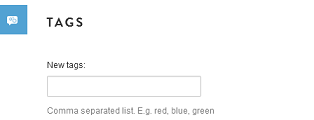
- Respondent level tags can be set up in the second "Tags" dialog. You can put example tags for ideas here (e.g., SKU, product name, etc.).

NOTIFICATIONS
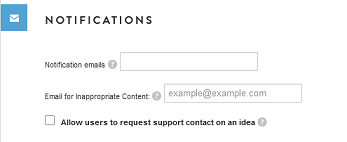
- You may set up notification emails. These notifications are sent weekly and include a summary of new ideas, votes and comments. Enter email addresses in the Notification email field. separate emails by commas.
- Members can flag comments and posts as inappropriate. Set your/ the moderators email address up to receive notifications emails whenever an idea or comment is flagged as inappropriate.
- Select the checkbox to allow activity specific support outreach. After checking the box a field appears to enter an email address where the support outreach should be sent to. For members, a checkbox when creating a new idea will appear. If they check the box, it will generate an email to the specified email address. The support email will contain: requester's email, idea title, idea description.
Idea categories
This setting allows you to specify idea categories. When members create their own ideas they would then need to pick one of the specified categories before they are able to submit a new idea.
- To specify categories, select the checkbox.
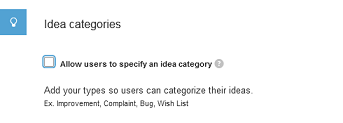
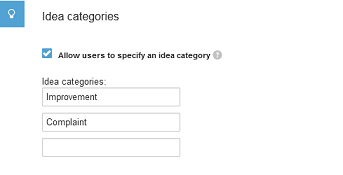
- A new text box appears. Type your first category. As you are typing into the box a second box appears. Enter one category per box.
- To remove a category, simply delete the text in the text box.
CLOSING YOUR IDEATION SESSION
You have a few options for closing your ideation session.
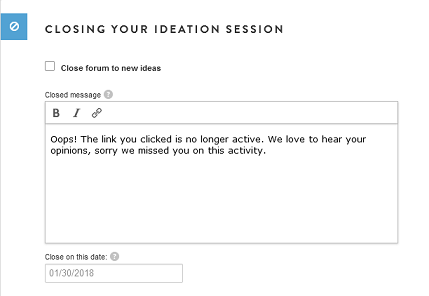
- After you have enough member ideas, you can change the setting and close the forum to new ideas (Select the check box in this section). Member can only respond to existing ideas to keep the discussion focused. As a moderator you may also decide to use this setting if you like to post a number of ideas before activating the session to allow posts on your predetermined ideas/ topics rather than allowing for members to post their own ideas.
- When you are done with data collection and actually close the ideation session, you can set an activity specific close message. This is the message members will see if they try to complete the survey after you have closed it for data analysis.
- You have the option to close the activity automatically by setting a number of responses and/or a closing date. If you choose the "close on this date" option, the survey will close within 1 hour of Midnight CST on the date you select.
LEADERBOARD
You may check the leaderboard. This is a respondent facing feature. It shows on the right hand side of the screen when members are in the ideation session. It shows the top 5 most active users for the past 30 days including an activity score. The score represents Ideas + Comments + Votes. The feature increases engagement and increases posts within an ideation session.

INCENTIVES
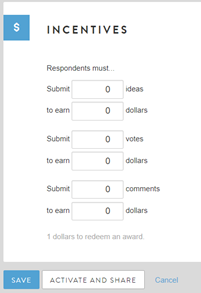
For ideation sessions, these setting will look a bit different than for other activity types. Instead of having the option to reward just for completes or terminates, you’ll set incentives based on how many ideas, votes, or comments they post.
Specify how much you would like to grant members for submitting ideas, votes, or comments. Please note that if you do not wish to grant incentives you will still have to populate these boxes with “0.” Be sure to click “Save” once you have done so.
SAVE
When you are done, Save your changes.
You can also Activate and share your survey from here using the ACTIVATE AND SHARE button. It will take you to the Distribute Tab where you design your invite and reminder text and select members to invite.
You can also cancel all changes you have made
Comments
0 comments
Article is closed for comments.