
As an admin user you can monitor and moderate focus group sessions by looking at the Results within the Moderate section of your session.
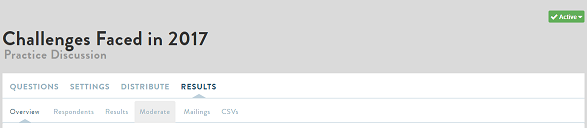
- Click on Moderate: This takes you to the actual focus group session where you can navigate through the various comments and interact with members.
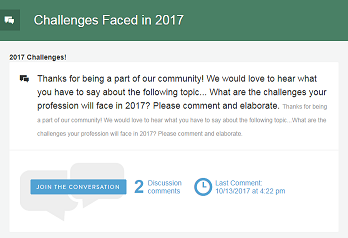
- Find the Discussion question you would like to monitor and moderate and click Join the conversation. A threaded discussion with all posts and comments appears.
- As a moderator, you are able to reply to member posts or reply to the question to add more discussion directions or probing.
- The Reply to this question is always open. Type a comment or additional probing into this box and click Leave comment to submit your post.
- In addition to a text comment, you may upload a video, image, or other file to have respondents react and comment on.
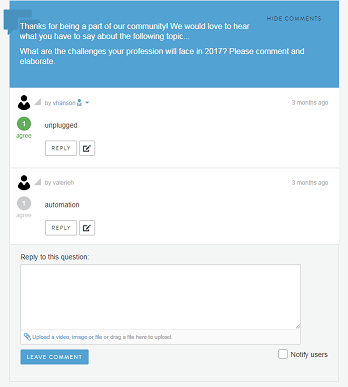
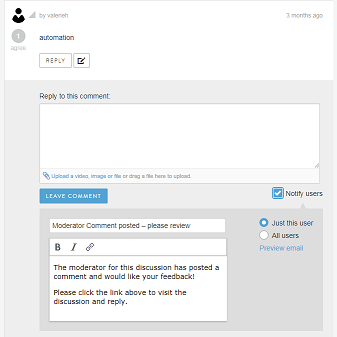
- To reply to a post, click on Reply underneath the post you want to probe/ comment on. The Reply to this comment box appears. Functionality is identical to when using Reply to this question described above.
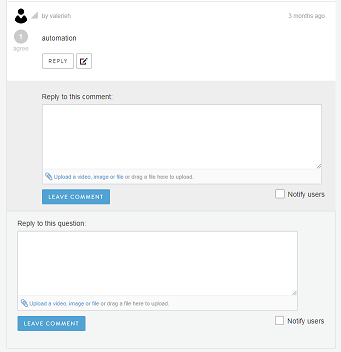
- The moderator can choose to notify users of the new post. Check the Notify users checkbox and select to notify either Just this user or All users. Users will receive an email message. This message can be customized in the window that opened up.
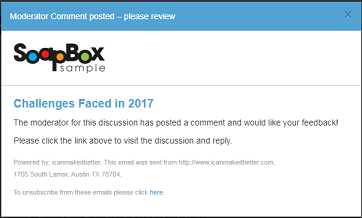
- Preview email to see how what members will receive. The link in the email will take members directly to the new post within the focus group.
Comments
0 comments
Article is closed for comments.