
What is the Community Search feature?
The Community Search feature allows you to search and find keywords/responses across all activities (i.e. Survey/Discussion, Ideation Sessions, Journals, Chats within a community.
The Community Search feature is available for select communities only. If you would like to enable this feature for your community, please discuss with your Account Manager.
Note: The current version allows you to search admin-generated question text/choices only. User responses are not currently searchable.
The Search feature can be found by clicking on the Admin button and then clicking on the magnifying glass to bring up the search bar.

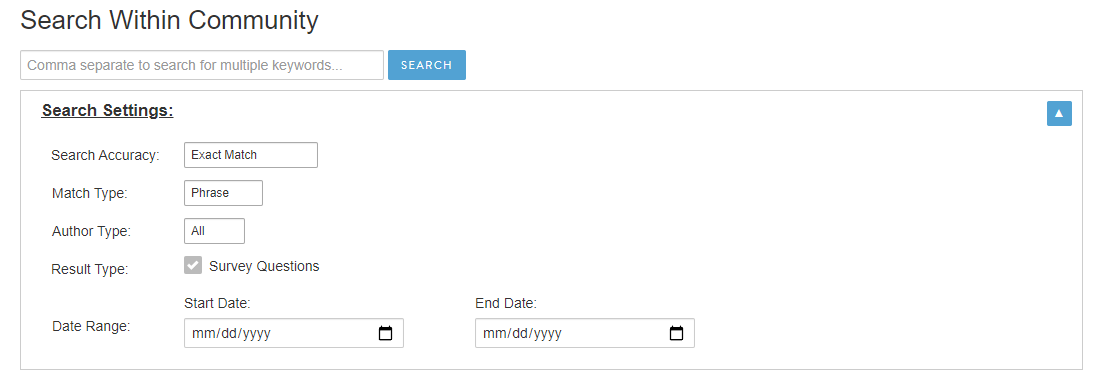
Features for Search Settings include:
- ‘Search Accuracy’ filtering: Search for exact spelling OR account for spelling errors (ie Bird vs Birt)
- ‘Match Type’ filtering: Search for multiple, independent keywords (comma-delimited) OR an exact phrase
- ‘Author Type ‘filtering: Filter for admin or user-generated content
- ‘Result Type’ filtering: Search within specific categories, note: only Survey Questions can be searched at this time
- ‘Date Range’ filtering: Limit search results to a specific timeframe
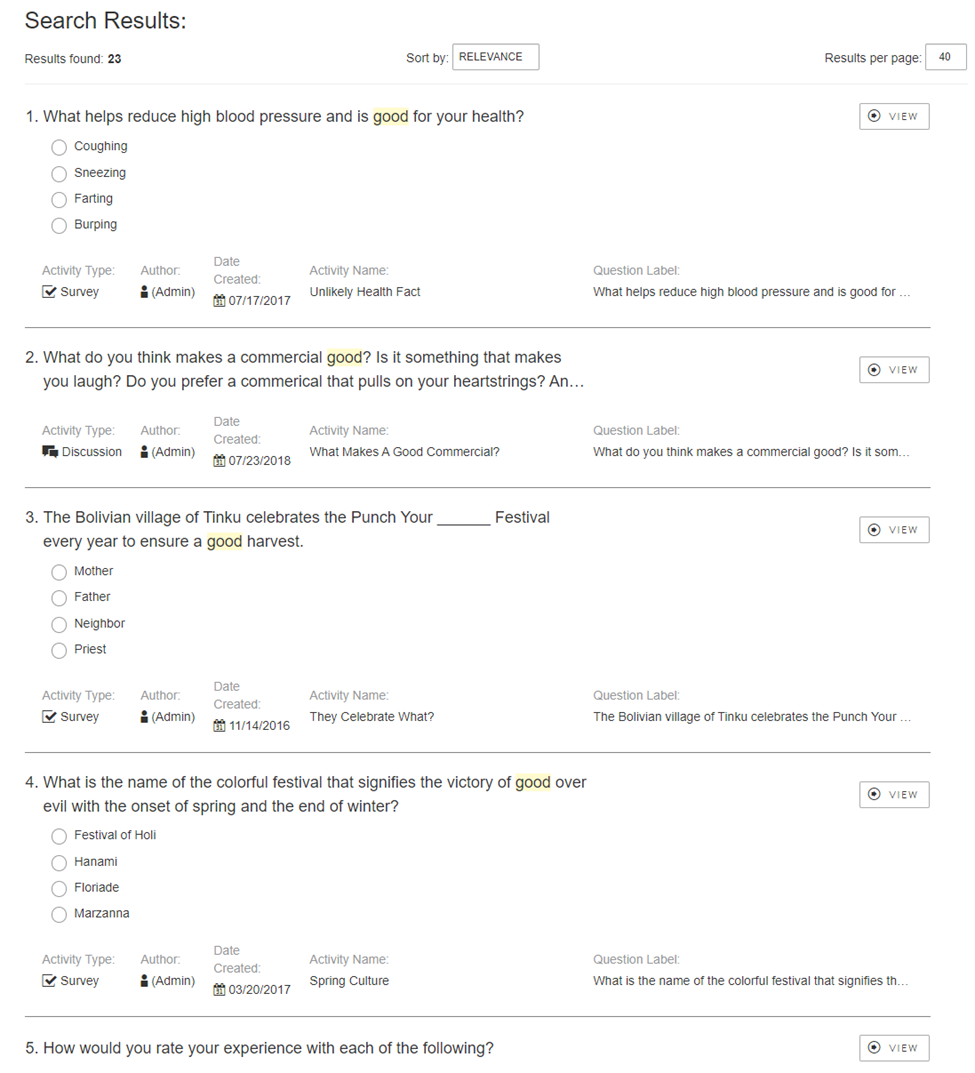
Features for Search Results include:
- ‘Sort by’ filtering: Sort results by relevance or date
- ‘Results per page’ filtering: Set the # of results displayed per page
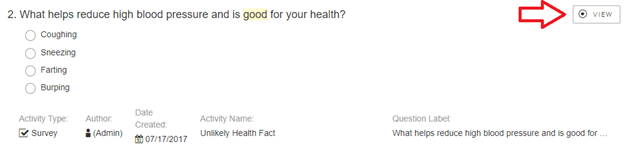
- Metadata: View key details on each results, such as the Activity Type, Author, Date Created, Activity Name, and Question Label
- ‘View’ link: Quickly access the originating text for each result with a direct link to the source page
To search across the community, first enter your search keyword(s) or phrase and configure your search settings. Then click ‘Search’.
Once the results are loaded, you will see the total number of results found, and can sort the results by Relevance or by Date (Most recent results first). You can also set the number of results to display per page.
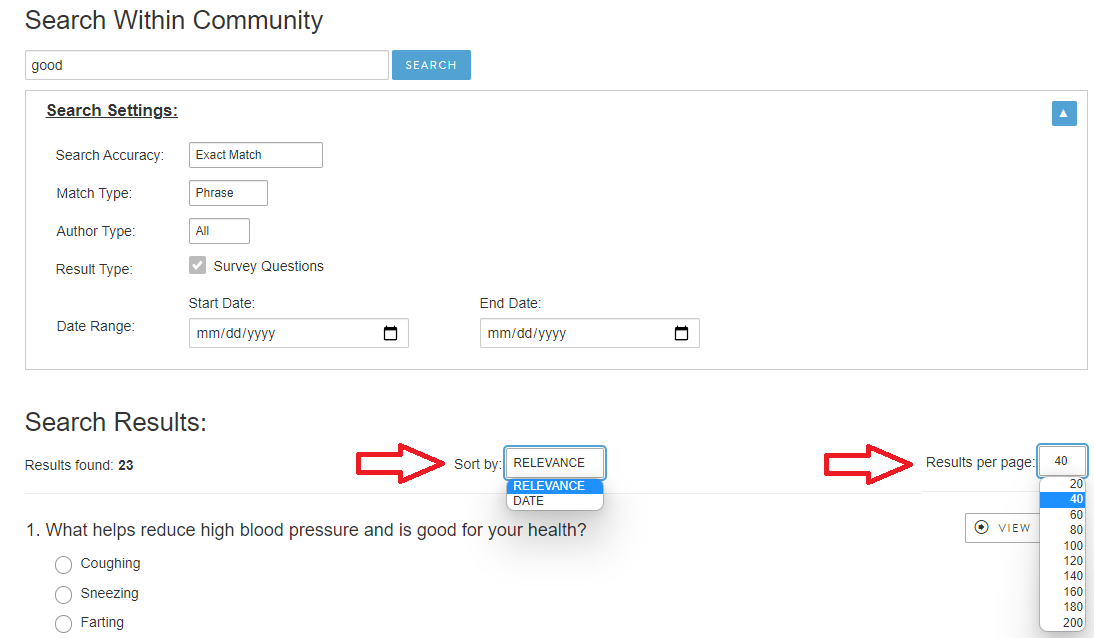
Within each results, the matching keyword(s) will be highlighted.

If you used the ‘Match Type’ filtering to search for independent keywords, results containing more than one unique keyword will be identified with an asterisk.

Longer result text (that exceeds two lines) will be truncated and only the first snippet of the text will be shown with a “…” to indicate that the text continues. To full the full text result, simply click anywhere on the question text to expand and view the complete result. If you wish to collapse the text, simply click again to return to the initial truncated view.

Each result will also include key details, or metadata, related to the result, such as the activity type where the text can be found (i.e. discussion or chat), the author, date created, and the name of the activity and the question label where the text can be found.
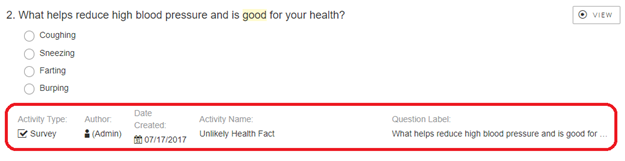
Additionally, you can jump straight to the source by using the ‘View’ link within each result. This will take you directly to the page where the originating text can be found. Note, it will NOT take you to the exact position on the page where the text is located, and you will still need to navigate within the page to locate the text. Utilizing details provided in the metadata (such as Question Label and Author) you should be able to find relatively easily with a page search (CTRL+F).
Again, the Community Search feature is only available for select communities. Please contact your Account Manager if you would like to enable this feature.
Comments
0 comments
Article is closed for comments.