
The Customer Boardroom is a great way for you to share results with your clients and internal stakeholders. Simply add each person's email address to an activity you want them to have access to, and they are able to login to see results as members complete activities.
Granting Access
Access is granted for each activity individually. Add one or more people to an activity and an automated email with instructions will be sent to each email address.
Access can be granted, regardless of activity status. You can grant access for pending, active and closed activities.
- To add someone to the Customer Boardroom, go to the Overview tab of the activity you want to grant access to.
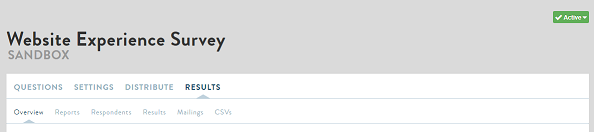
- Scroll to the bottom of the page until you see the Customer Boardroom section.
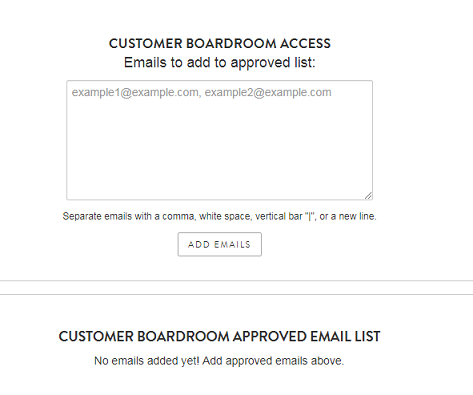
- Enter the email addresses of your customers in the box. If adding multiple people, use comma, white space, a vertical bar, or a new line to separate email addresses. Next, click ADD EMAILS.
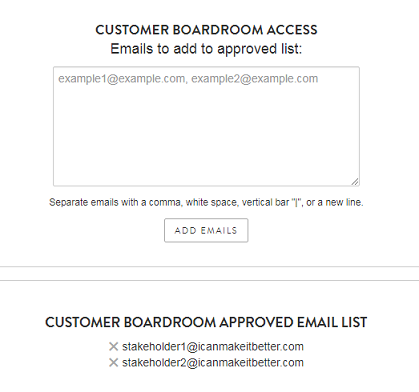
- Added email addresses appear beneath the heading CUSTOMER BOARDROOM APPROVED EMAIL LIST. To remove access, simply click on the X next to the email for which you would like to remove access rights.
- After adding emails, an automated email will be sent with access instructions. To read more about what your clients and internal stakeholders receive and how the Customer Boardroom looks for them, read Customer Boardroom - Features.
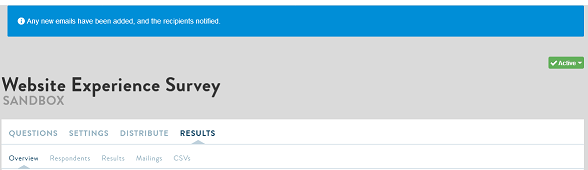
- A notification in the blue bar at the top of the screen confirms that the emails have been sent.
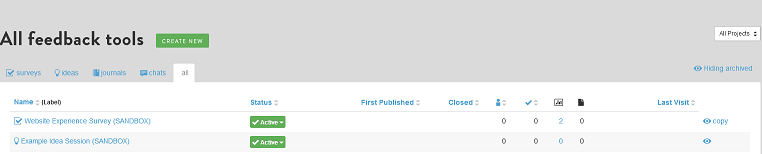
- Another way to track who has been added to the Boardroom is through the Feedback Tab. The bar graph symbol on the right is the column with info on how many email addresses have been added to the Customer Boardroom for each activity. Clicking on the number will take you to the bottom part of the Overview Tab which lists the email addresses that have been added.
Comments
0 comments
Article is closed for comments.