
What are Profile Questions?
Profile Questions is a new feature that enables you to consolidate & centralize any questions that help segment & target your community members.
- Key demographic and other descriptive/behavioral questions are collected from different activities and are combined in one place.
- Community members respond to these questions in different activities over time, and their Profile Questions are automatically updated with their most recent responses.
- For Profile Questions to work:
- Questions have to be asked in closed-ended questions.
- Instances of a Profile Question must be the same question type (single select or multi select).
- Instances of a Profile Question must have the same number of answer choices in the same order.
- Answer choice text fields must be the same
- Only “like for like” instances can be bundled.
- Shadow instances can be bundled with other shadow instances.
- Shadow instances cannot be bundled with icmib instances.
Non-supported Question Types
The following Questions Types are not supported within the Profile Questions tool.
- Heat Map, Timed Heat Map, Stick Note Heat Map, Password, Discussions
- Questions which include Based-On or Piping Logic
How to setup a Profile Question
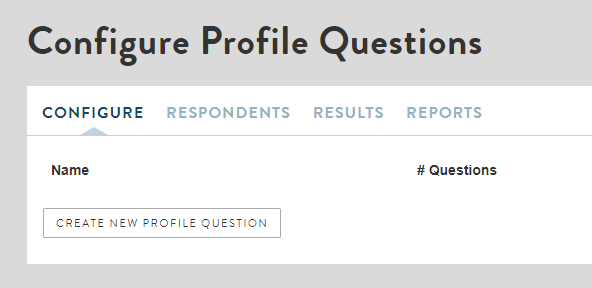
- Select Profiles on the top Admin ribbon.

- Next, click the “Create New Profile Question” button.
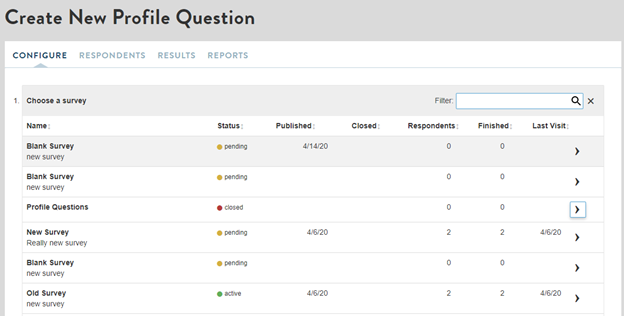
- Select the survey that contains the question you want to use as a Profile Question from the list or use the “Filter” search bar.
- You must have an existing survey from which to pull your Profile Question (including shadows).
- NOTE: Only closed-ended questions fielded in surveys can be used for profiling purposes. Comments in live chats, discussions, and idea sessions are excluded from this feature.
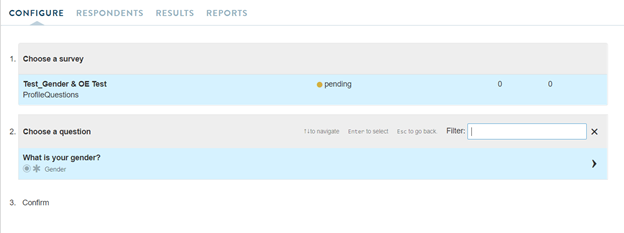
- Choose the question you want to use for profiling.
- You can customize the Profile Question in the “Question Name” field.
- Approve the question by clicking on the blue button “CREATE A NEW PROFILE QUESTION.”
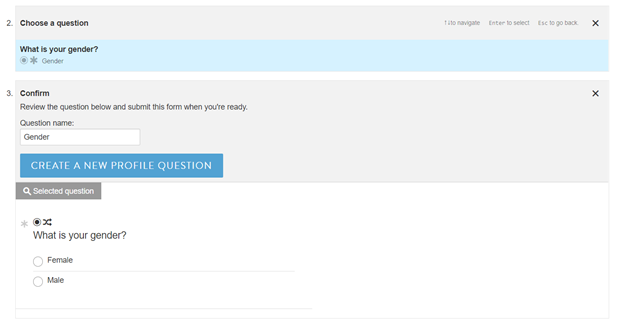
- Creation of the new Profile Question is confirmed.
- Click on “Configure” tab to go back to the main overview page, where it shows a Profile Question has been created and the question count is 1.
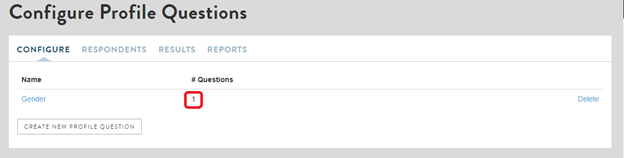
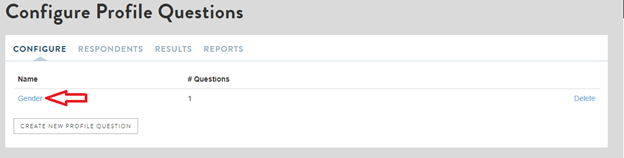
- Click on “Gender” to view details about this Profile Question.
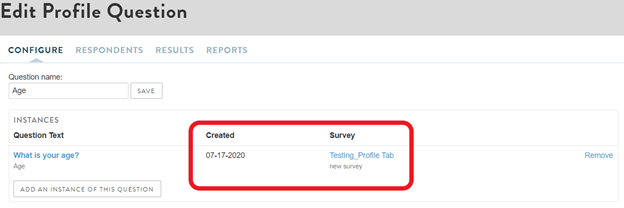
- You’ll see the original question sources (i.e. activities and dates) for each instance added to this Profile Question.
Editing the Name of the Profile Question
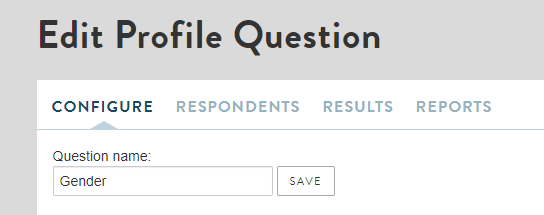
You can edit the name of the Profile Question.
- NOTE: The platform defaults to the question text when you add a new Profile Question.
- Click “Save” to update the Question Name.
Adding an Instance
As noted earlier:
- Instances of a Profile Question must be the same question type (single select or multi select).
- Instances of a Profile Question must have the same number of answer choices in the same order.
- Instances of a Profile Question must have the same answer choices (spelling).
To add an instance:
- Click on the name of the Profile Question.
NOTE: Make sure you are NOT clicking on “Create New Profile Question” to add instances of the same question.
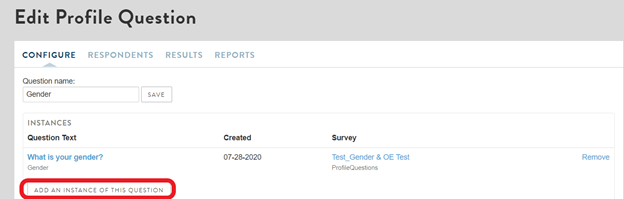
- Select the survey you want to use from the list or use the “Filter” search bar.
- Search for and select the question you want to use.
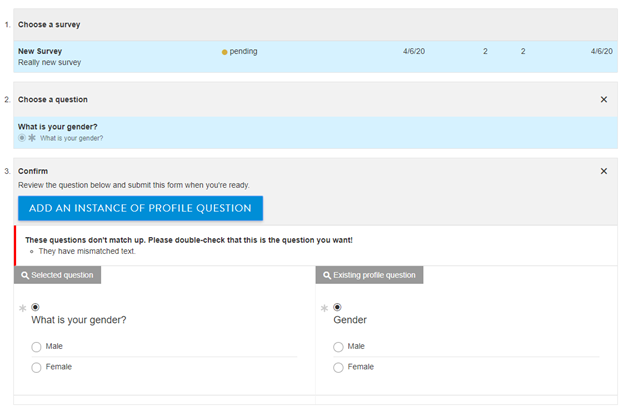
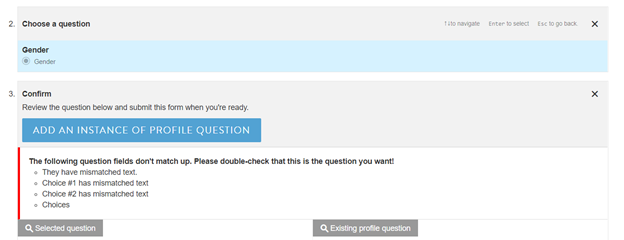
The platform checks that the new question instance is formatted/structured the same way as the first instance. If the system detects that the question text isn’t the same, it prompts you to validate this question is the right one. The instance above can still be added because only the question text is different.
All instances of a Profile Question must have the same number of choices in the same (programmed) order, and have the same answer choices. Answer choices can be randomized/non-randomized.
- Click the blue “Add an Instance of Profile Question.”
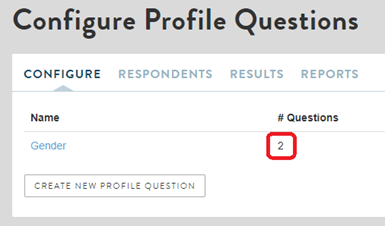
- On the main overview page, the Gender Profile Question count goes up to 2.
Programming a Profile Question in an Activity
For new surveys, a Profile Question can be imported during the programming phase, and it is automatically added as an instance into the Profile Question count.
- Go to the Edit tab of the survey during programming.
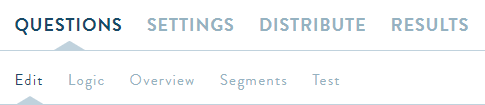
- Click on the box titled “Add From Question Library.”
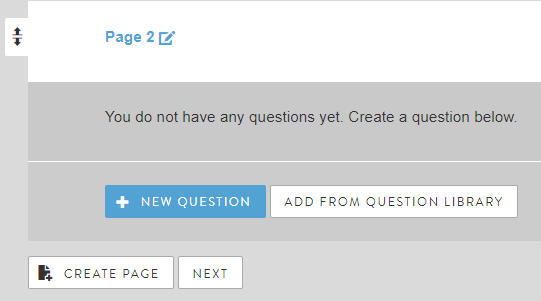
- A list of available Profile Questions appears.
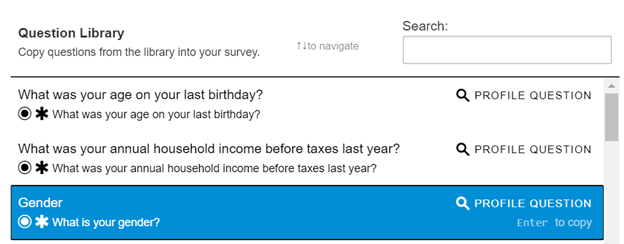
- Click on the Profile Question to import it, and then click “Finished.”
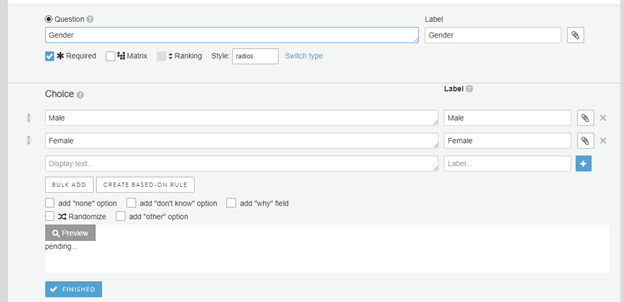
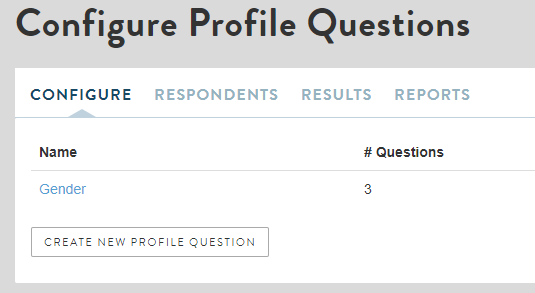
- This NEW Gender instance is automatically added to the Profile Question. The Profile Question count is now 3.
- Note: Shadow instances cannot be bundled with platform instances, and vice versa. Only use the question importer for platform instances, not shadow instances.
Trying to Add an Instance That Has More/Fewer Answer Choices vs. the Original Instance
You cannot add a new instance of a Profile Question if the number of answer choices/rows do not match up. If a new instance is incompatible with the Profile Question, a NEW Profile Question needs to be created.
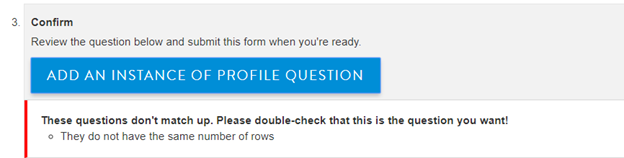
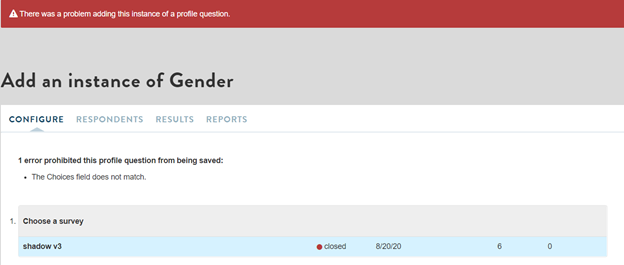
If you try to “Add” the new instance that does not match up, you are prompted with an error message with notes you can reference on why the instance could not be added.
Editing Profile Questions
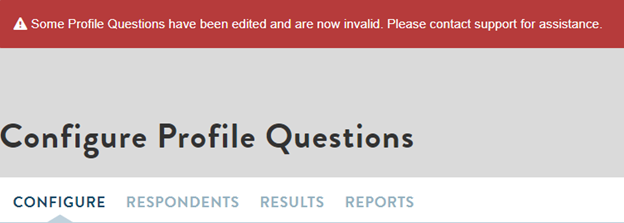
If you are programming a question pulled from the Profile Questions library, DO NOT modify, or edit the answer choices. If this occurs, a warning shows on the Profiles tab that recommends contacting support. Profile Question data should not be trusted when this warning is showing. Note: Do not edit the answer choices for instances that have already been added to the Profile Questions.
Locked Membership
Profile Questions only work for registered, active community members, because the membership is how the responses are linked between multiple surveys and a respondent’s profile.
NOTE: Members who are archived, banned, or who have opted out are filtered out of the Results tab & exports by default.
Results Tab
Profile Questions results can be accessed and used similar to survey activities.
- You can create advanced filters to cut the data.
- You can implement comparisons (cross stabs) using these advanced filters. You will not be able to implement comparisons via “questions” similar to regular surveys. Segments must be built via the advanced filter tool.
- You can create “Reports” & digitally distribute.
- Note: You cannot export cross-tabs; this feature is only available in regular surveys.
Completion for Profile Questions
Completion status does not apply for Profile Questions since the answers can be pulled from different surveys at different levels of completion. The Membership and Completion filters are locked to "members" and "all" for Profile Question surveys.
NOTE: When exporting the Results, ignore the columns for Completion Status, IP address/GEO and Last Survey Answered. These columns will be cleared out at a later date.
User Tab search defaults
If a community configures any Profile Questions, the Profile Questions survey is added to User Tab searches, replacing the old "Profile Survey" setting. (The old "Profile Survey” will be added if it's configured and the newer Profile Questions survey isn't used.) Either survey can be removed or added back as desired.
NOTE: Advanced filters and comparisons (crosstabs) can be applied to the Profile Questions Results tab. This is executed the same way as you would for a typical survey.
Knowledge base article on creating custom filters: https://icanmakeitbetter.zendesk.com/hc/en-us/articles/115007552528-Filtering-Results
Knowledge base article on implementing comparisons (crosstabs): https://icanmakeitbetter.zendesk.com/hc/en-us/articles/360010111914-Comparisons-and-Stats-Testing
Comments
0 comments
Article is closed for comments.